Any photo to a
laser-ready file.
In seconds.
Drop in any image; portrait, pet, or logo. EngraveIQ prepares it for real-world engraving with clean, optimized results ready for laser machines.
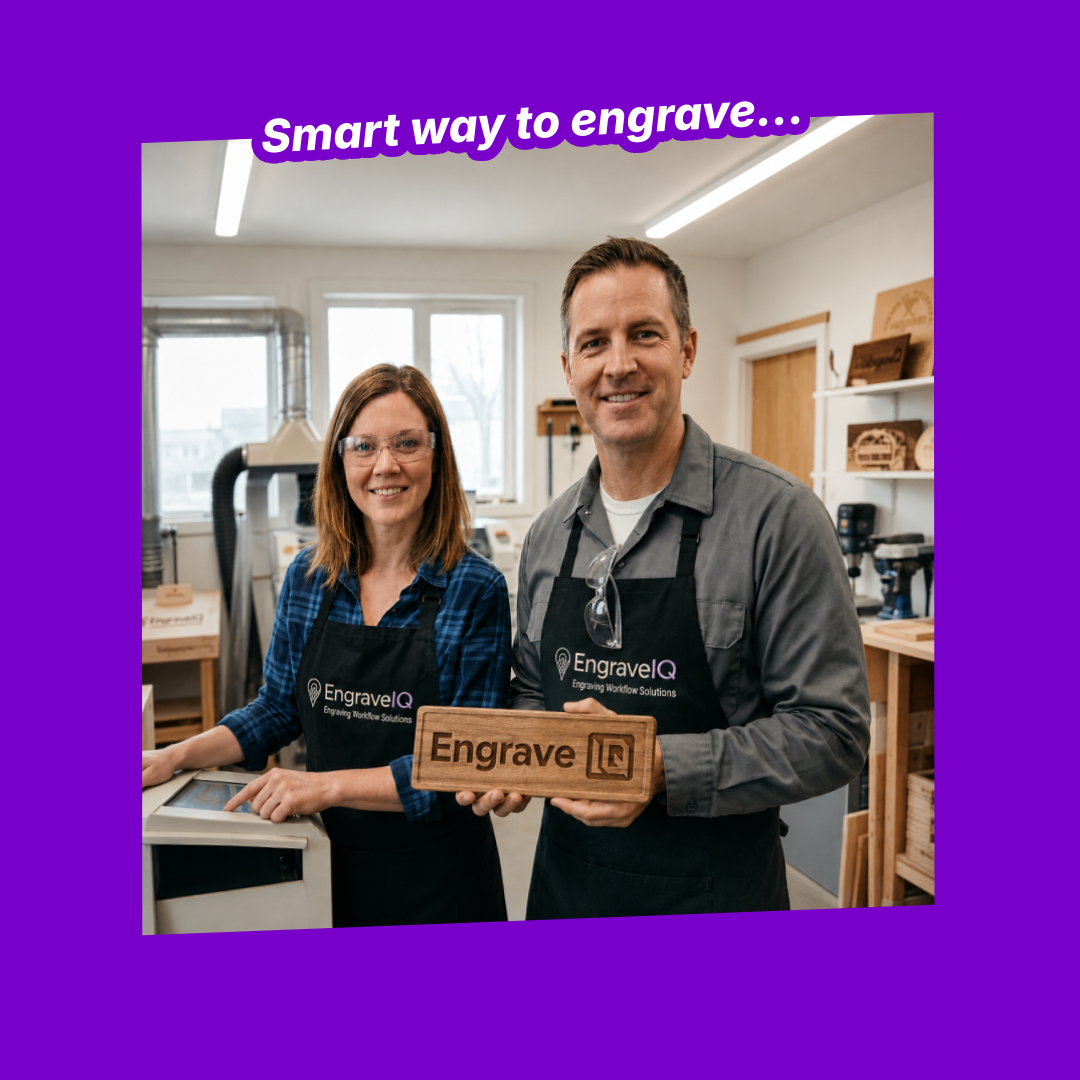
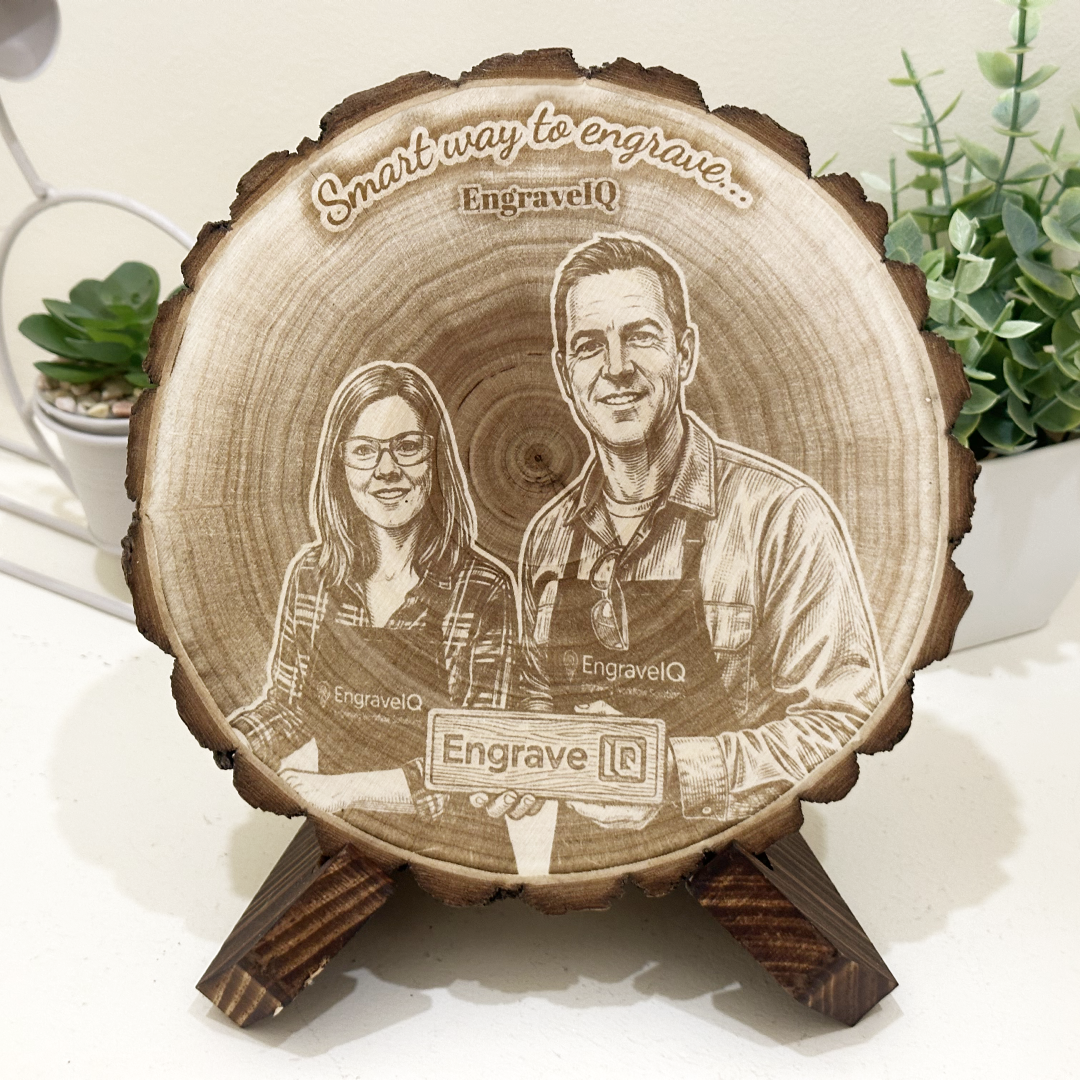
Sellers using EngraveIQ spend less time per order and ship more of them 💸
See it before you engrave
Upload your product, drop in your design, and preview exactly how the engraving will look before you fire the laser.
your products
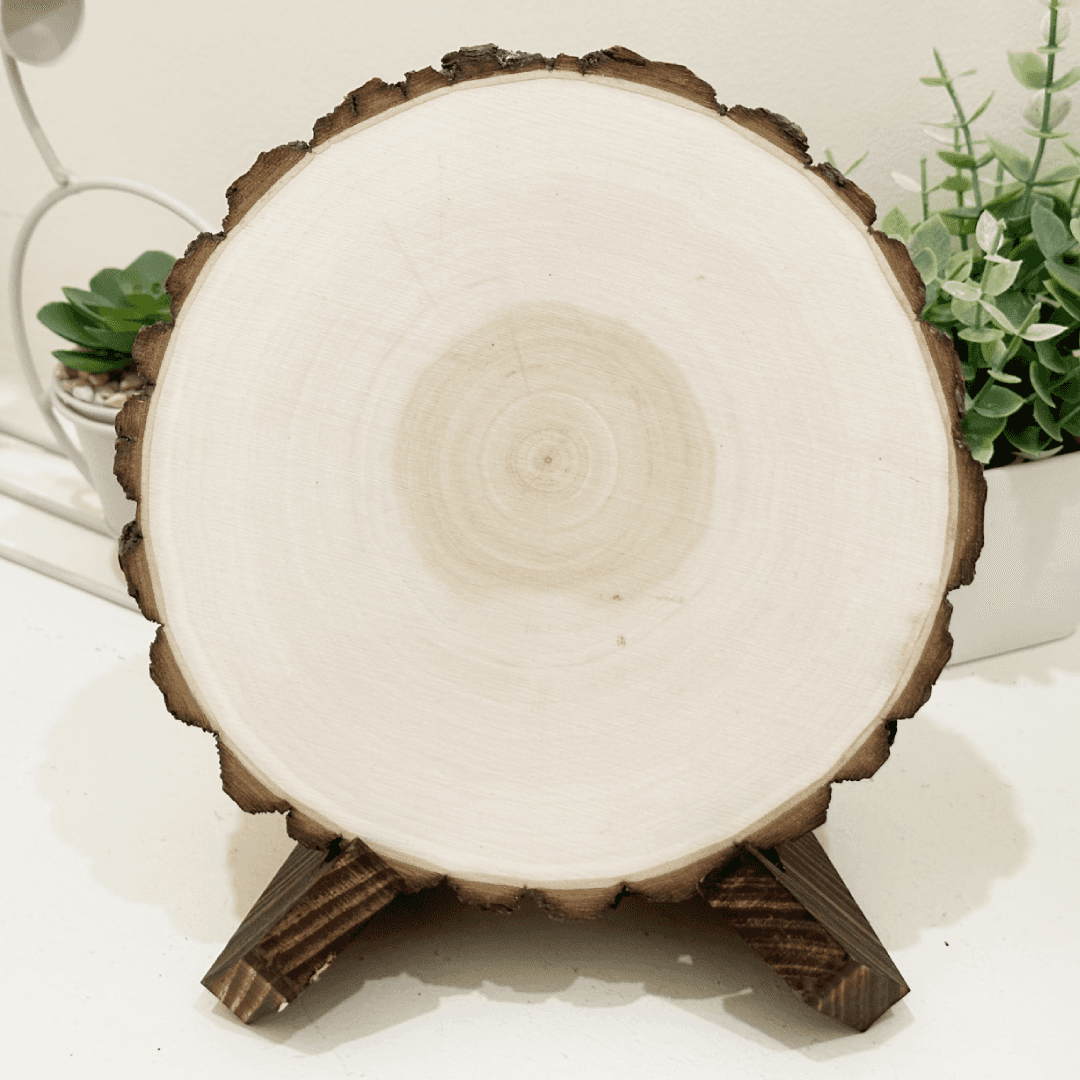
Wood slices, slates, mugs, tumblers — upload anything you sell.
your design
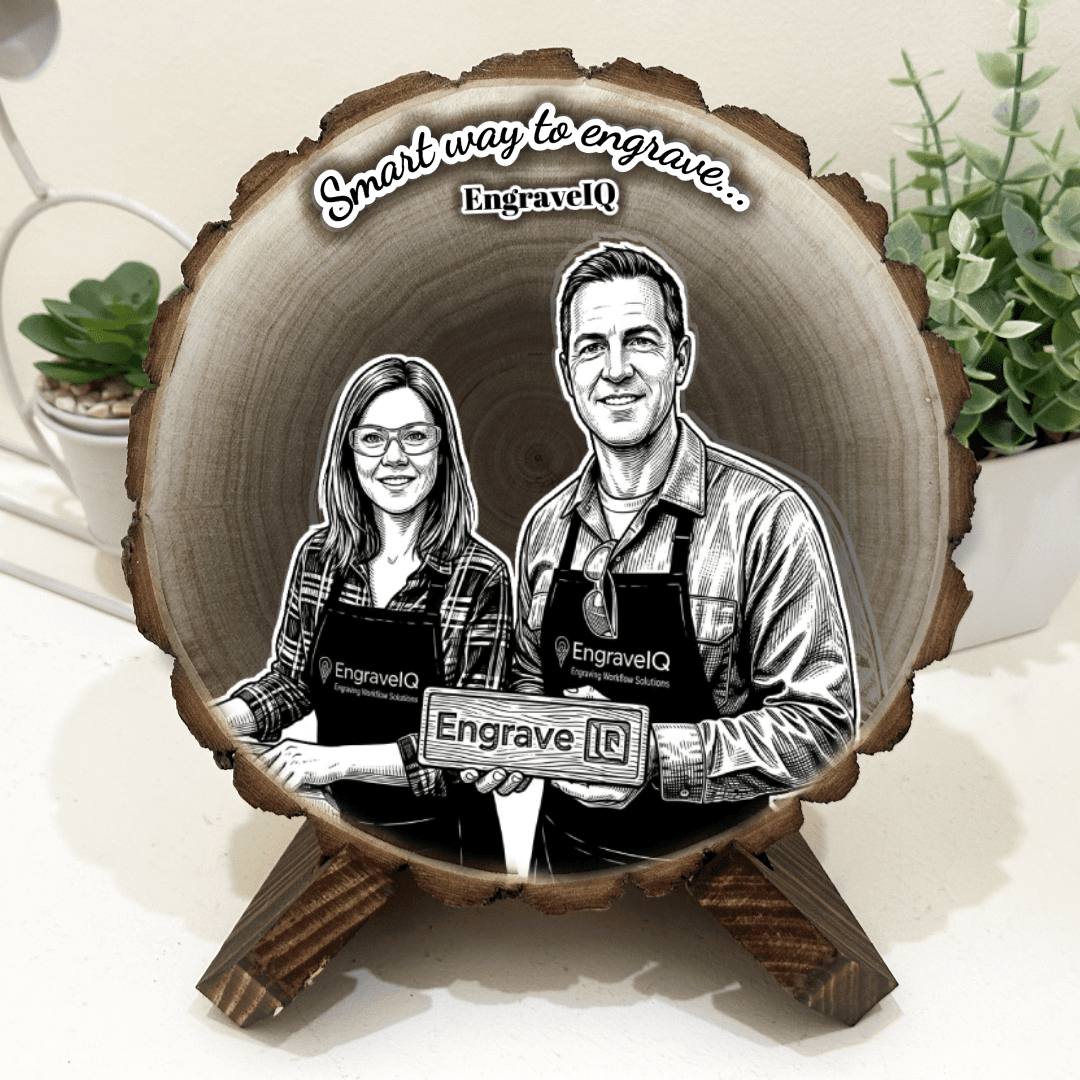
Drop in your artwork and place it on the real product.
final result
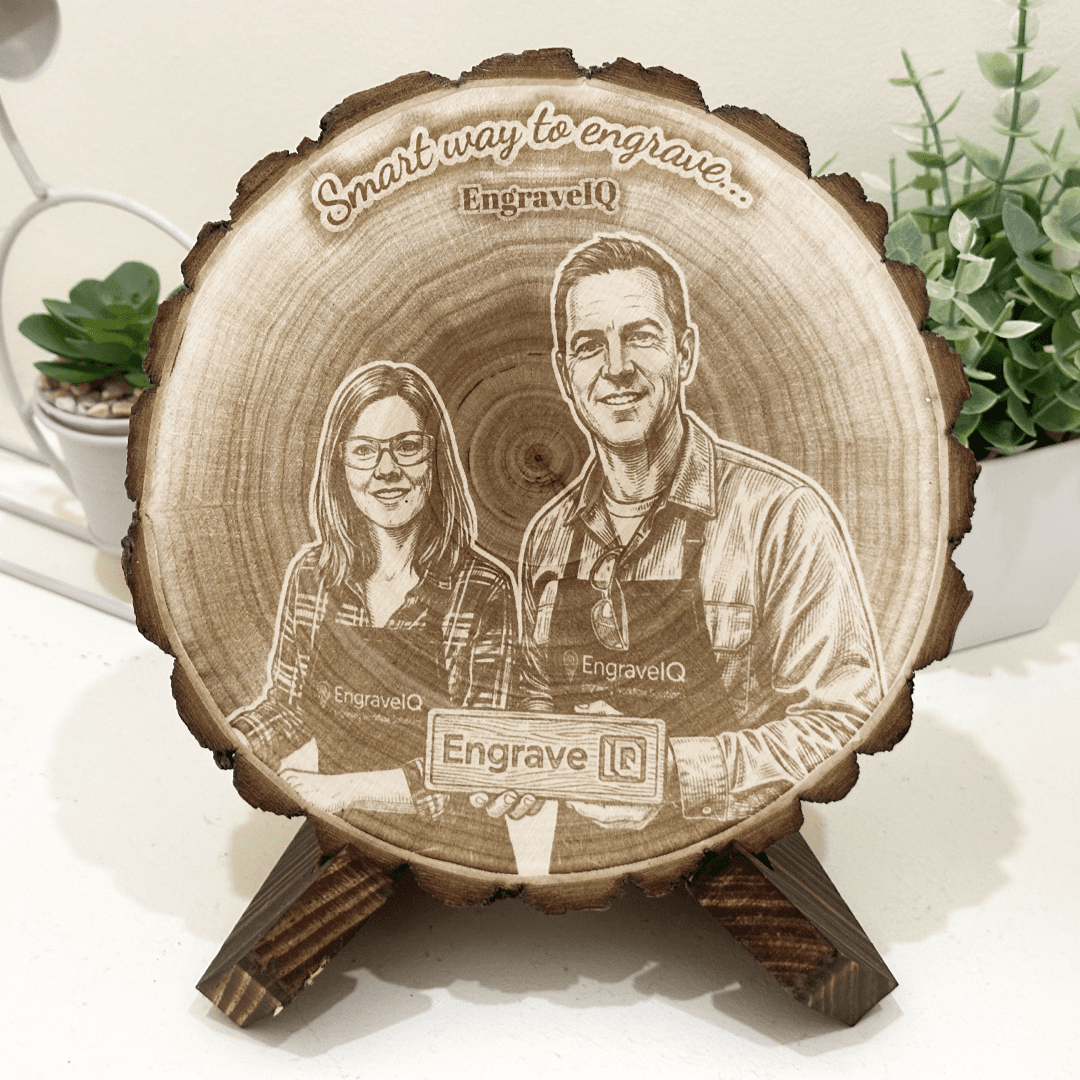
See a realistic preview of the burn before you fire the laser.
Three steps. No software to install.
Watch what happens when you drop in a photo — background removed, vectorized, ready to burn 🔥
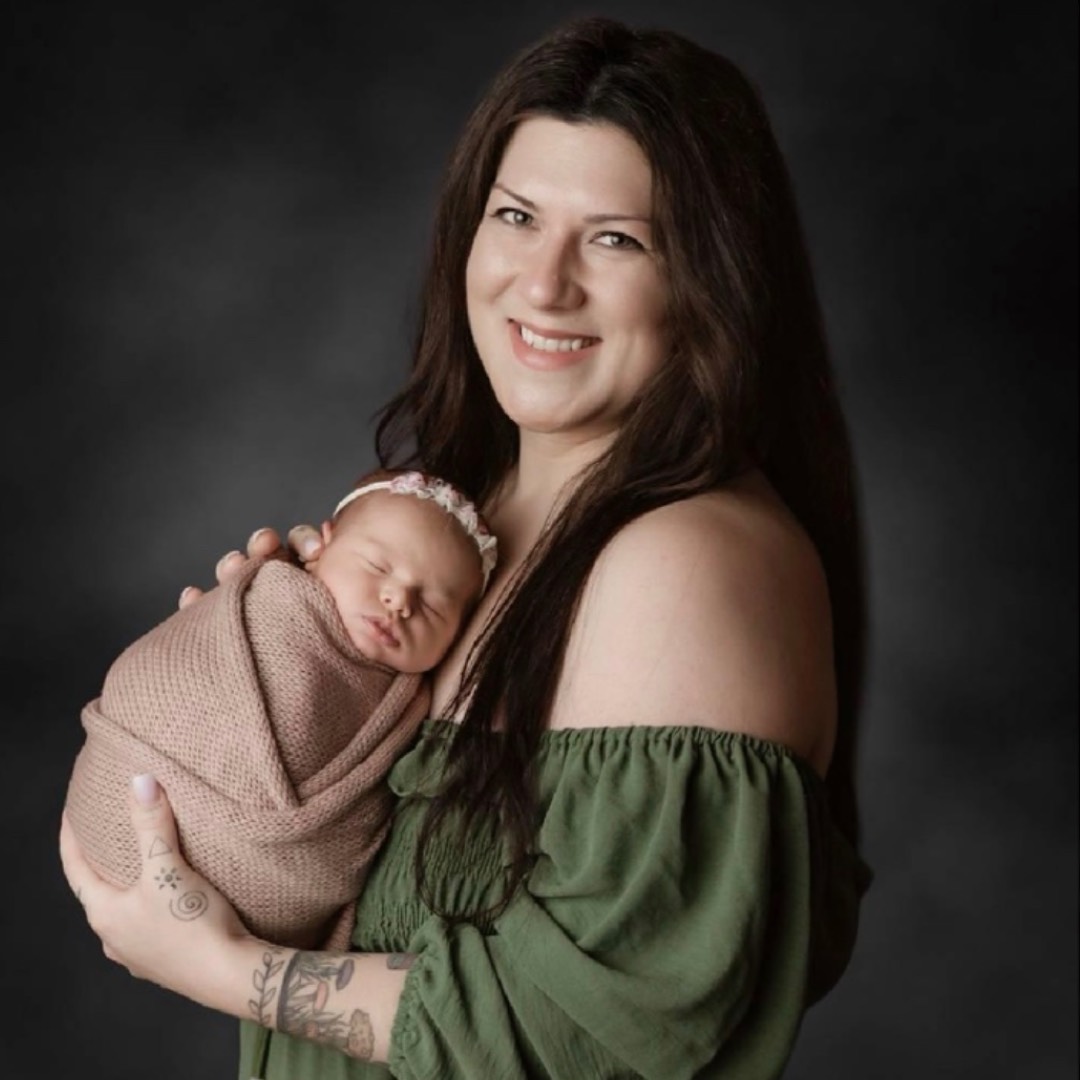
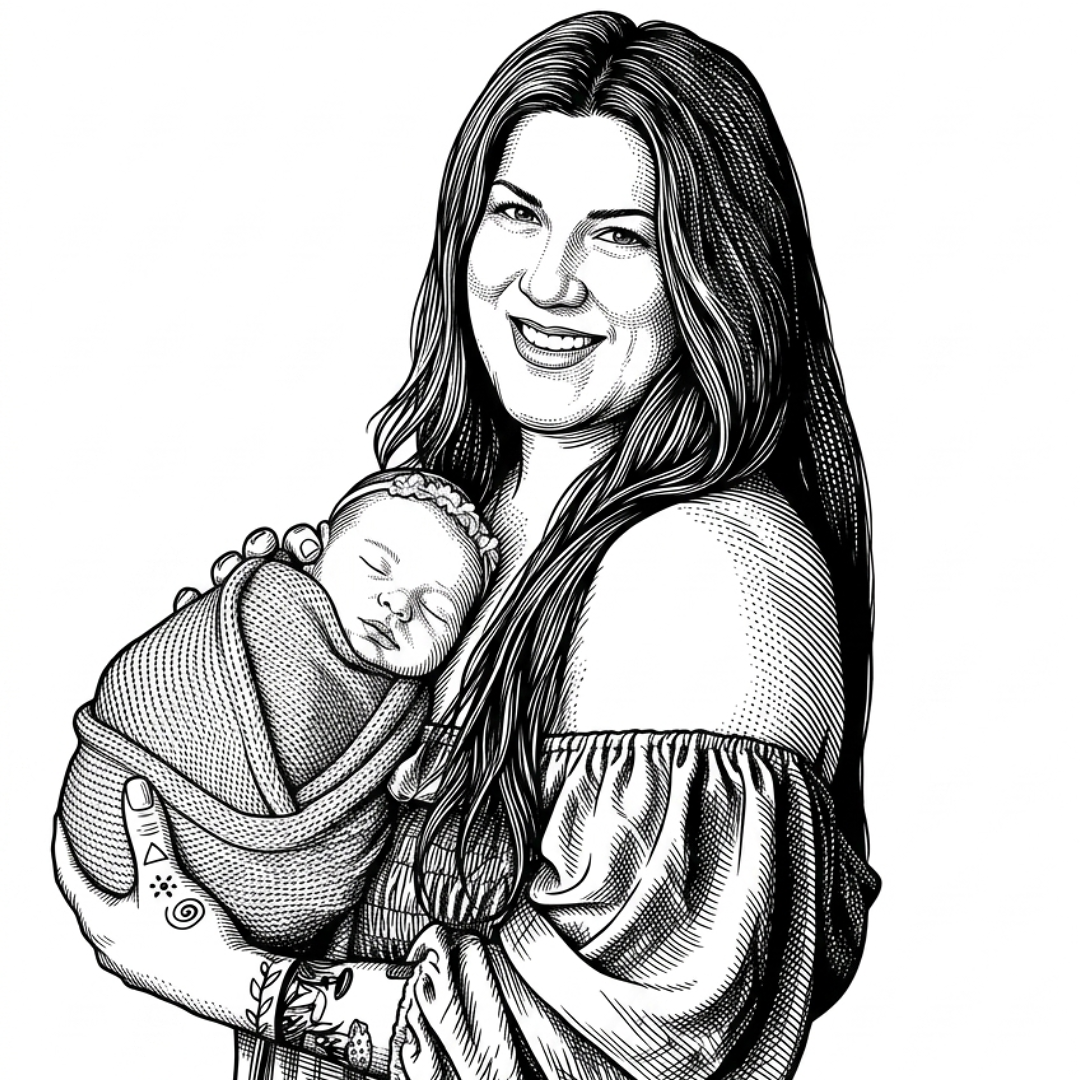
Upload an image
Drag in a JPG, PNG, or HEIC. Even a blurry phone snap will do — we clean it up.
We do the hard part
Background removal, contrast tuning, vectorization, dithering. All automatic, all in your browser.
Download laser-ready files
SVG for cutting outlines + dithered PNG for engraving. Drag straight into LightBurn, Glowforge, or xTool.
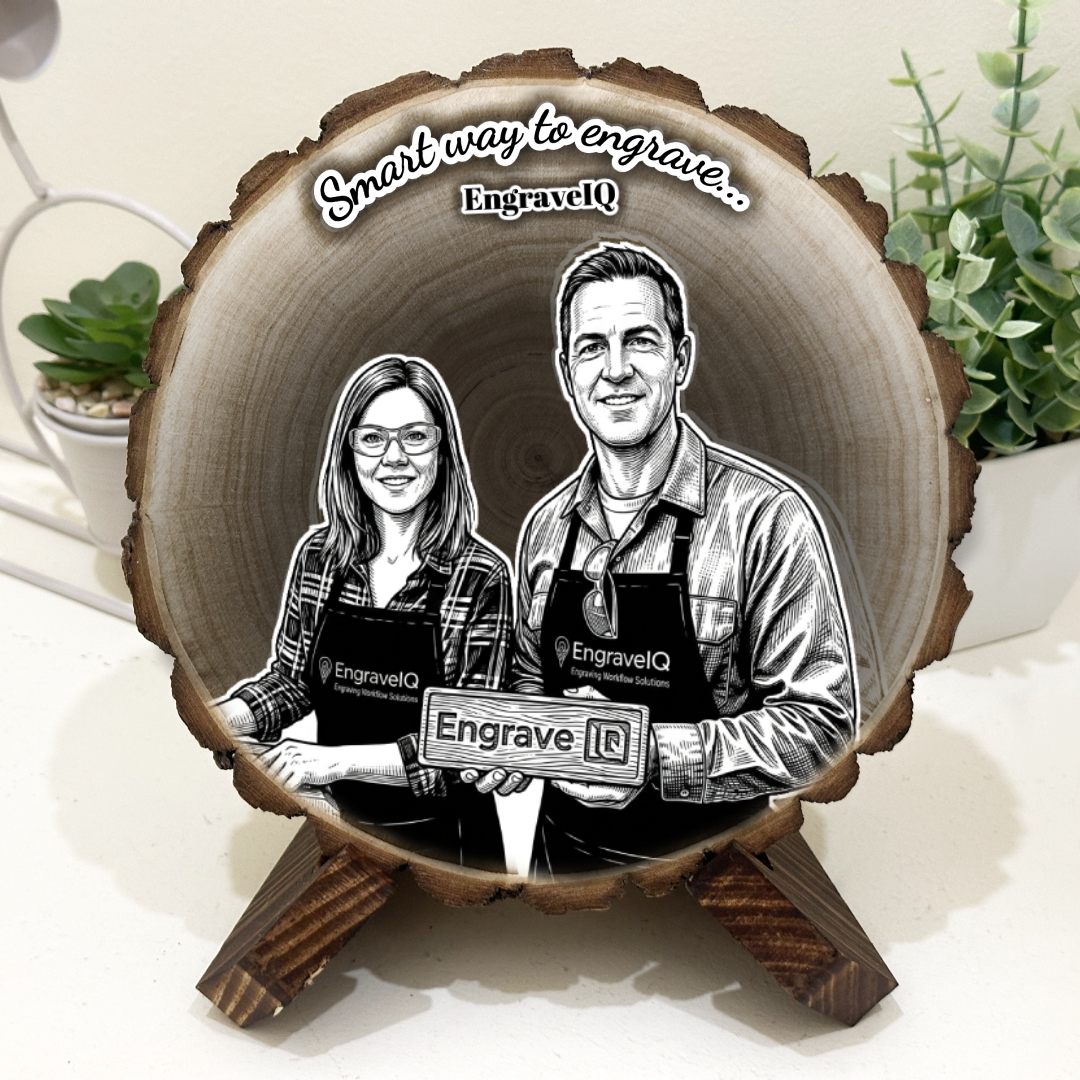
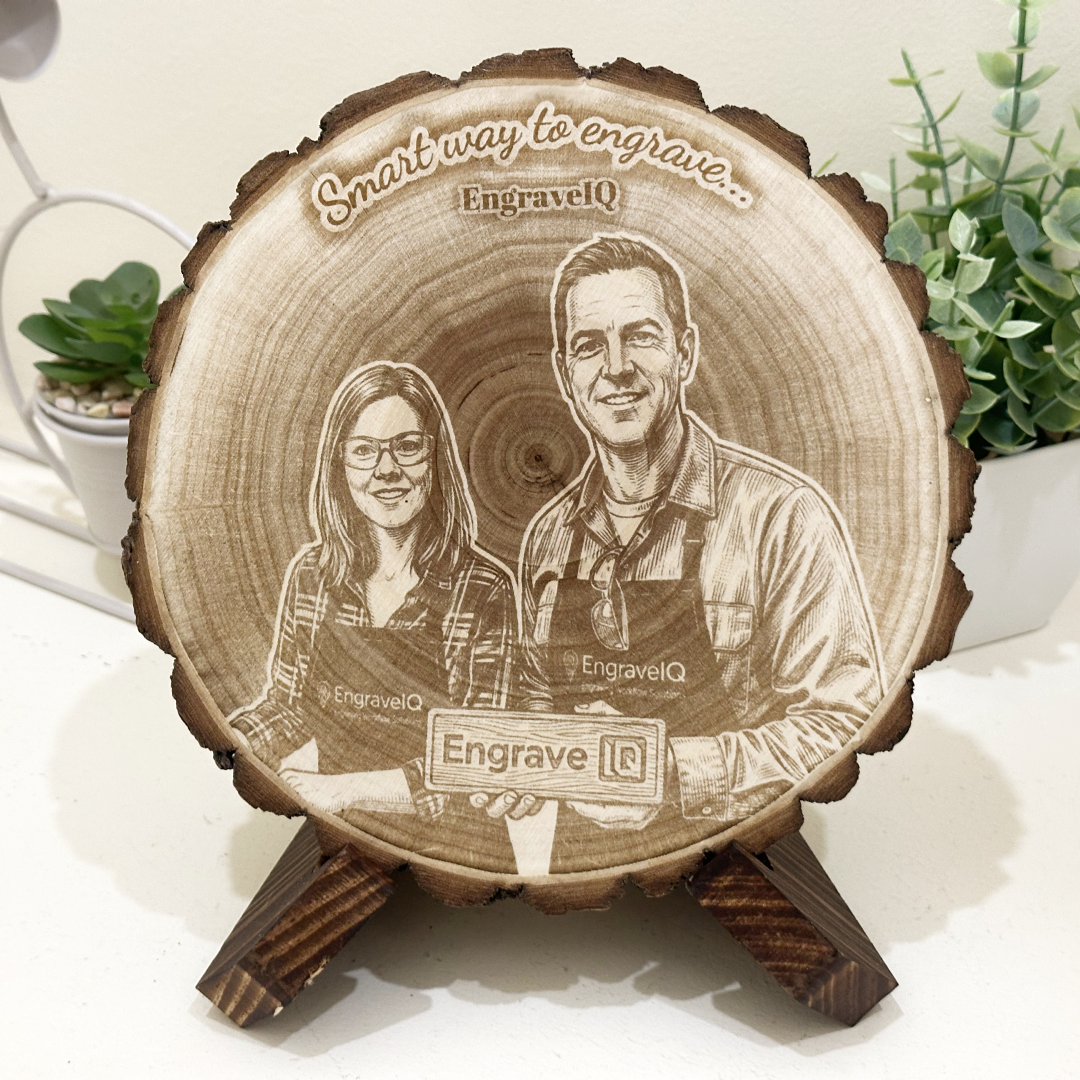
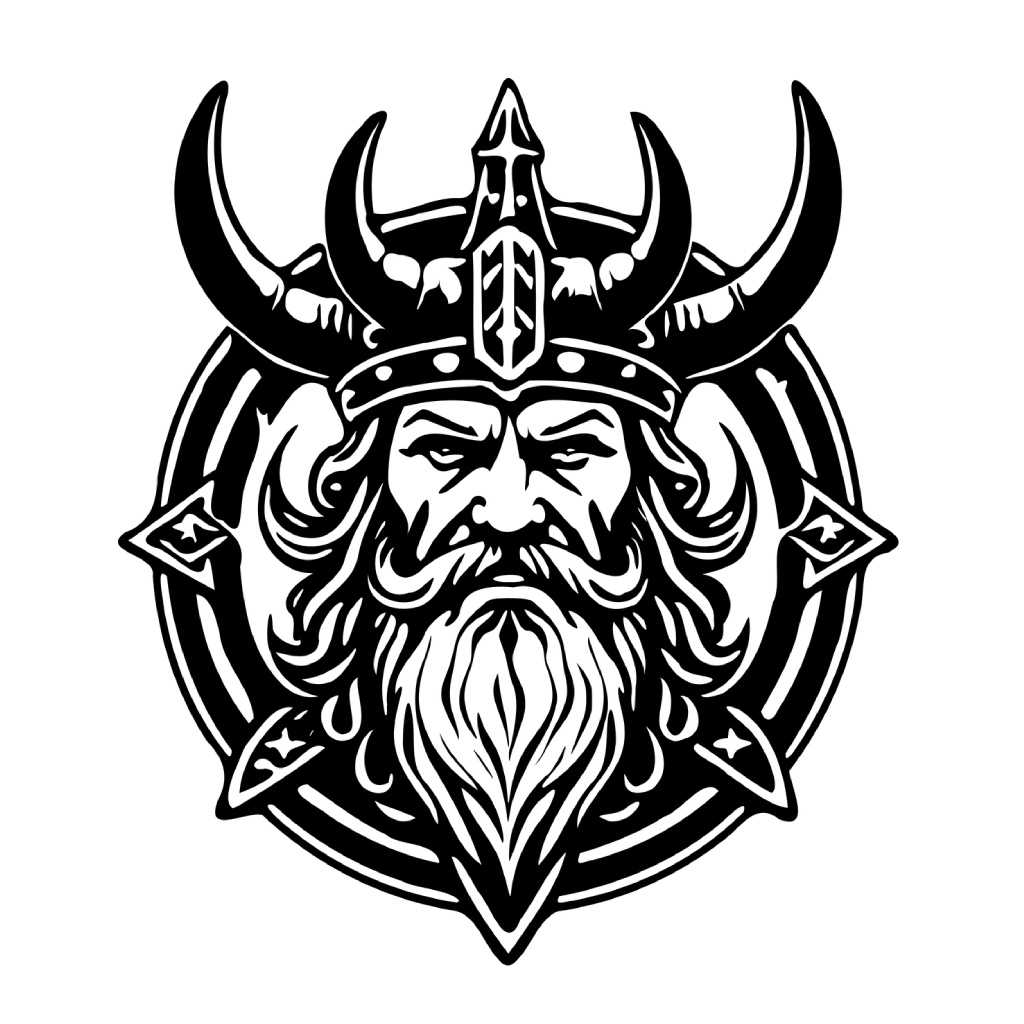
See the difference in engraving quality
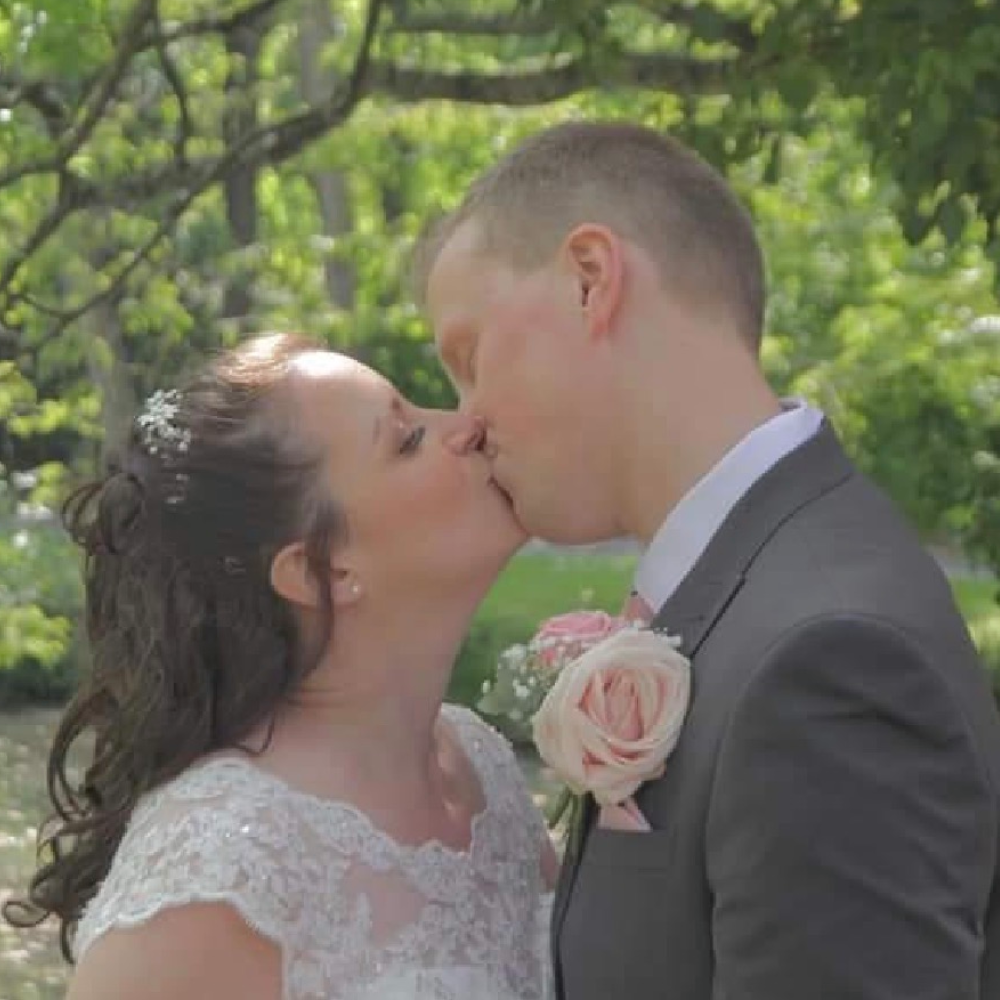
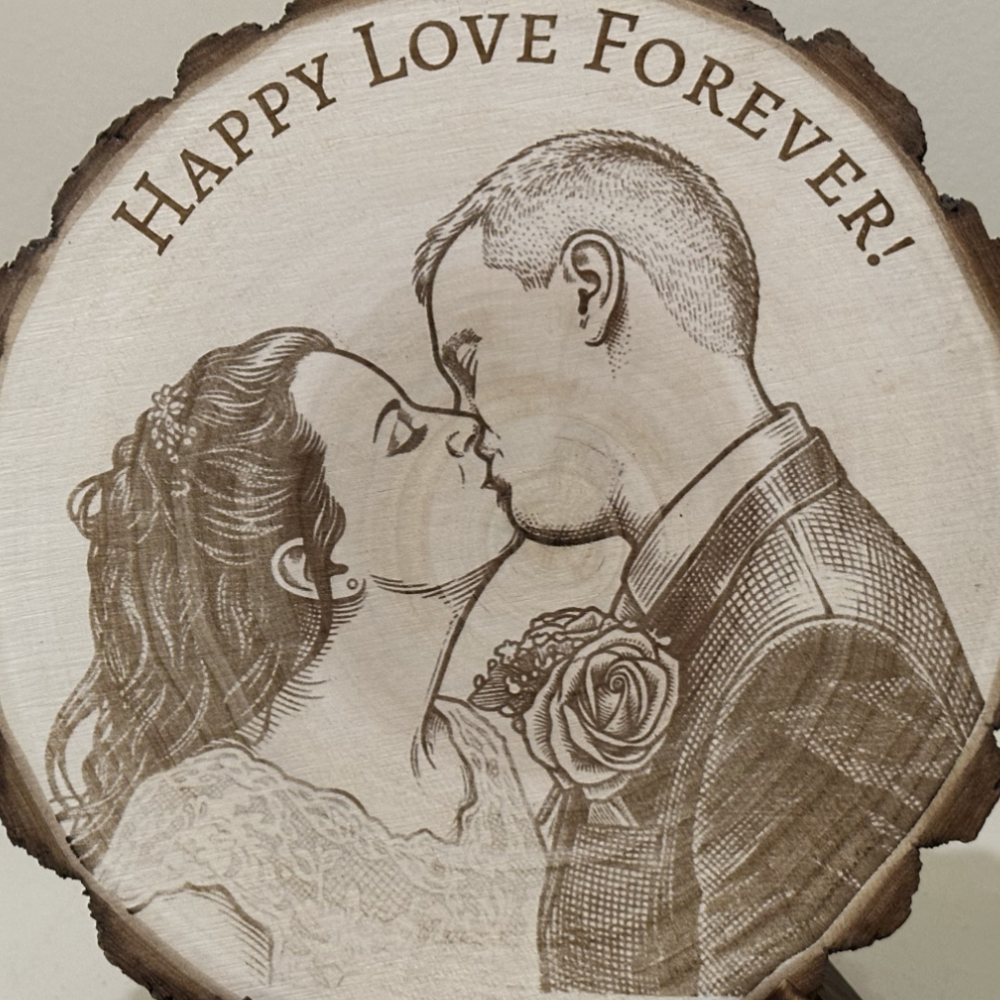
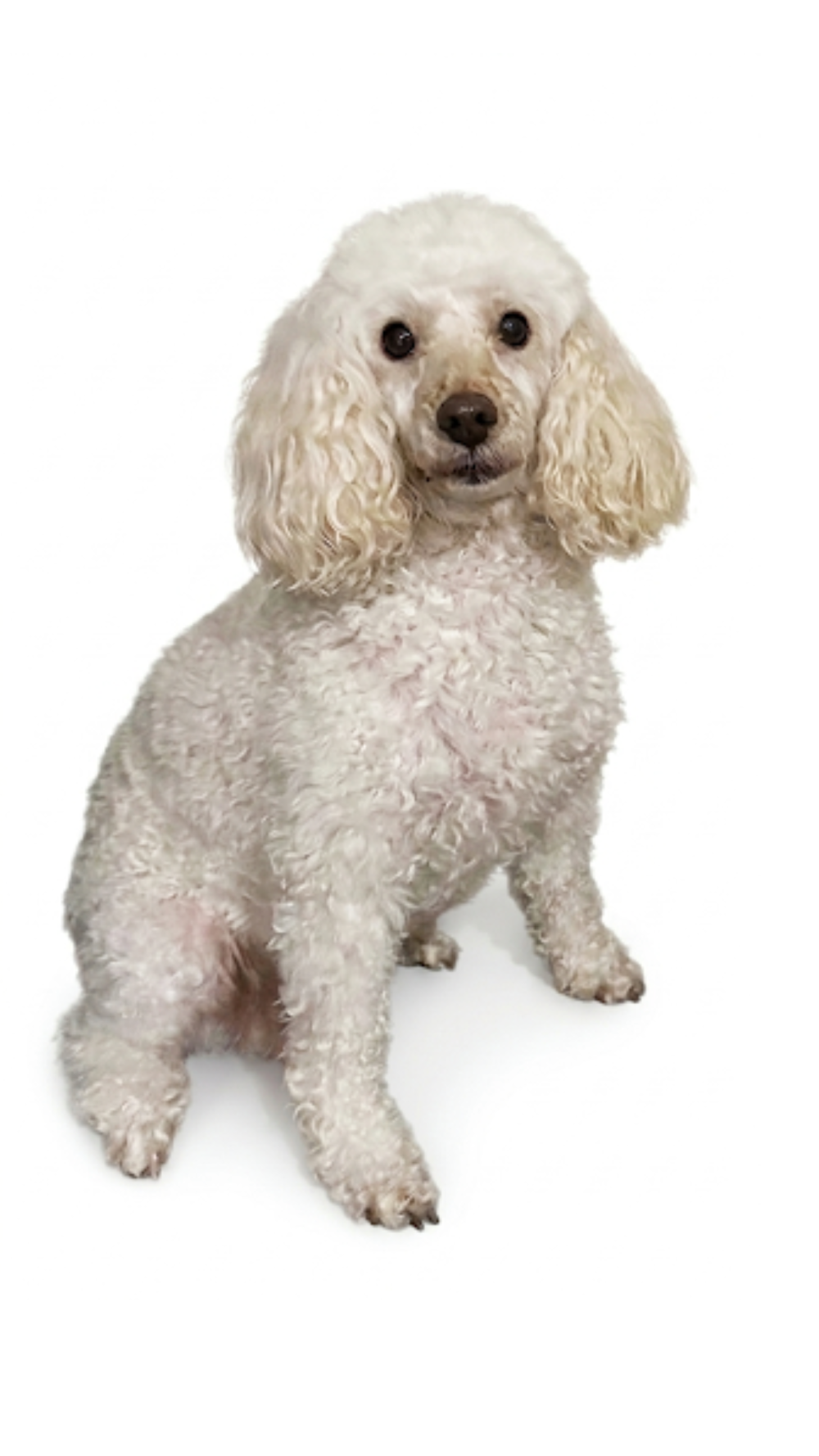
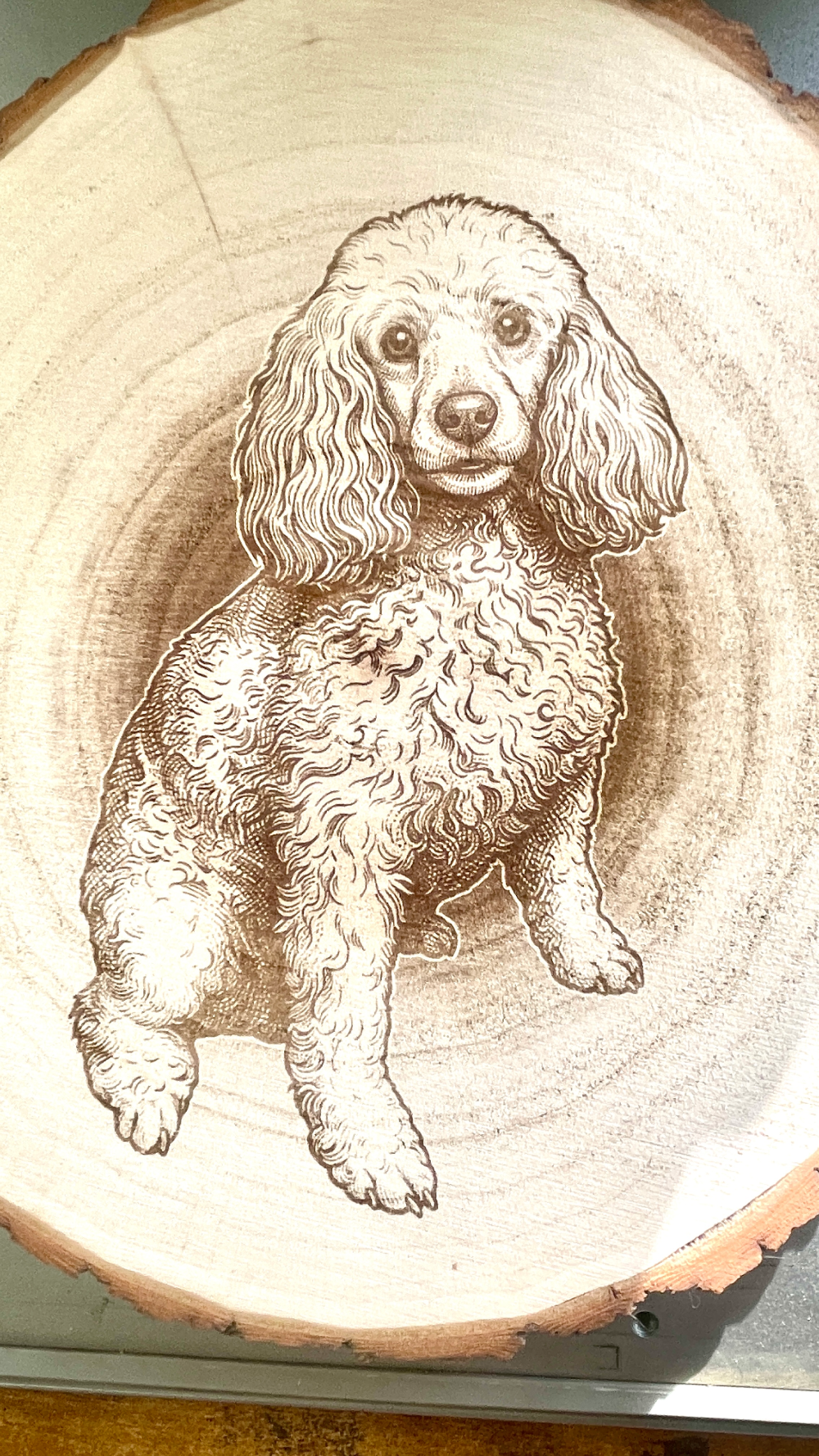
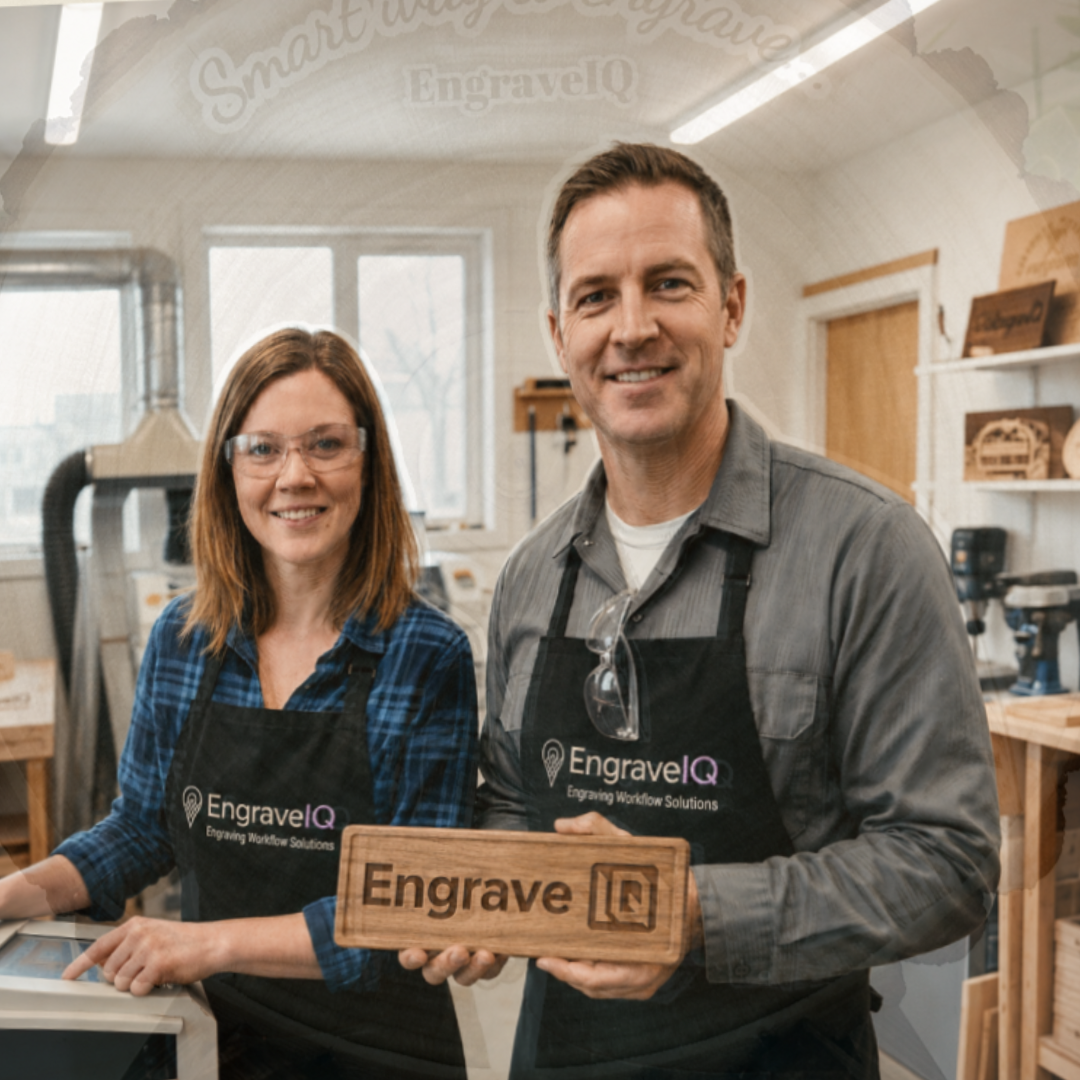
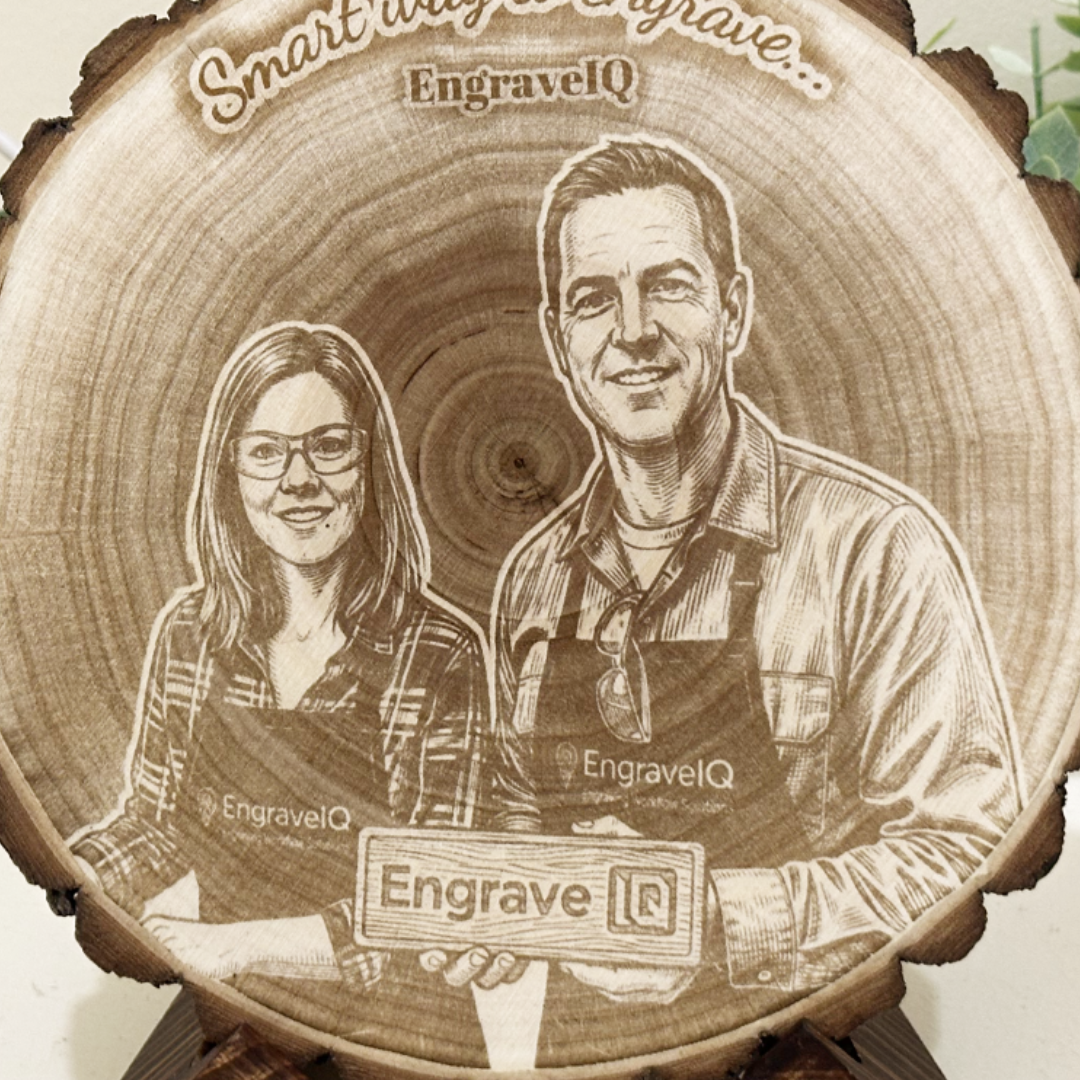
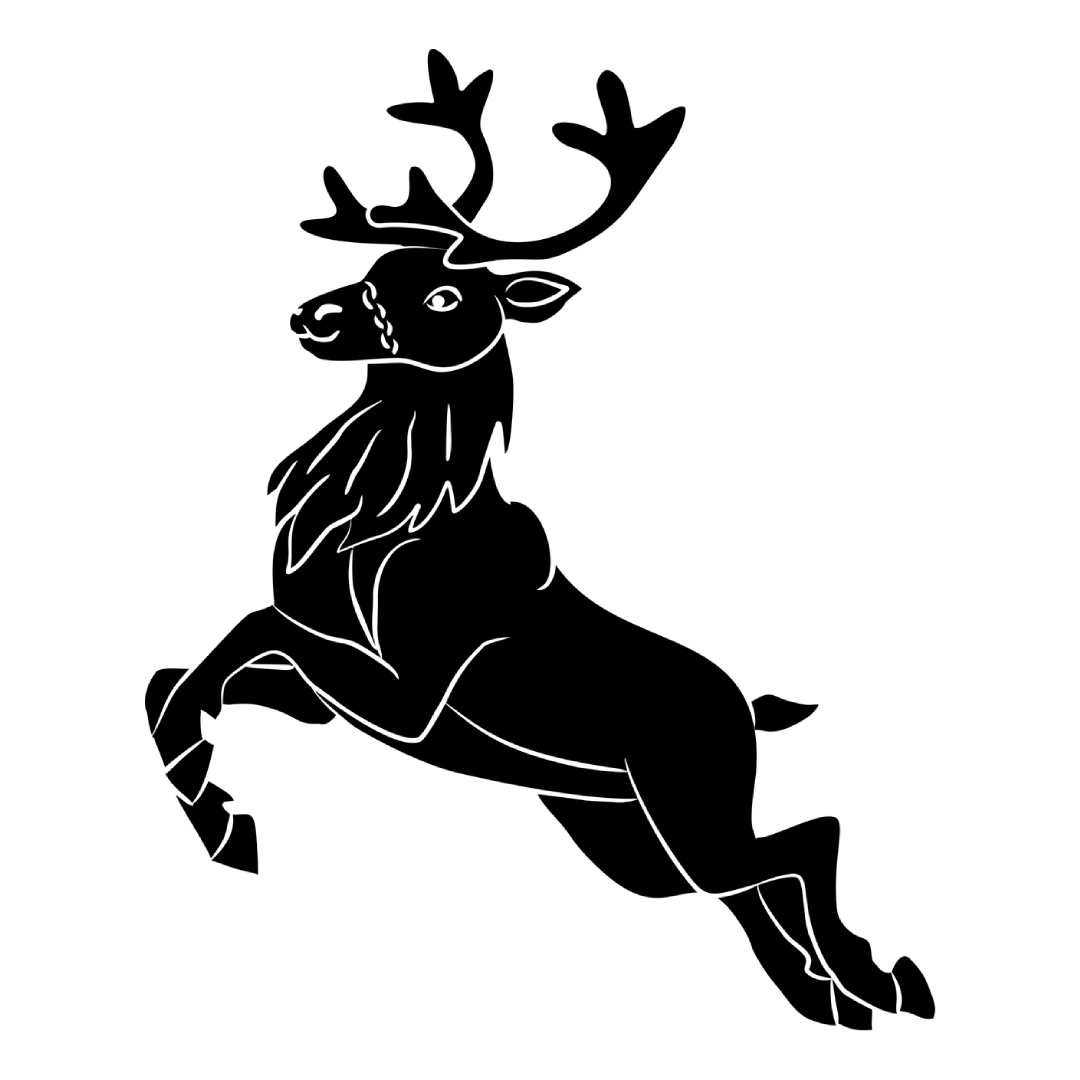
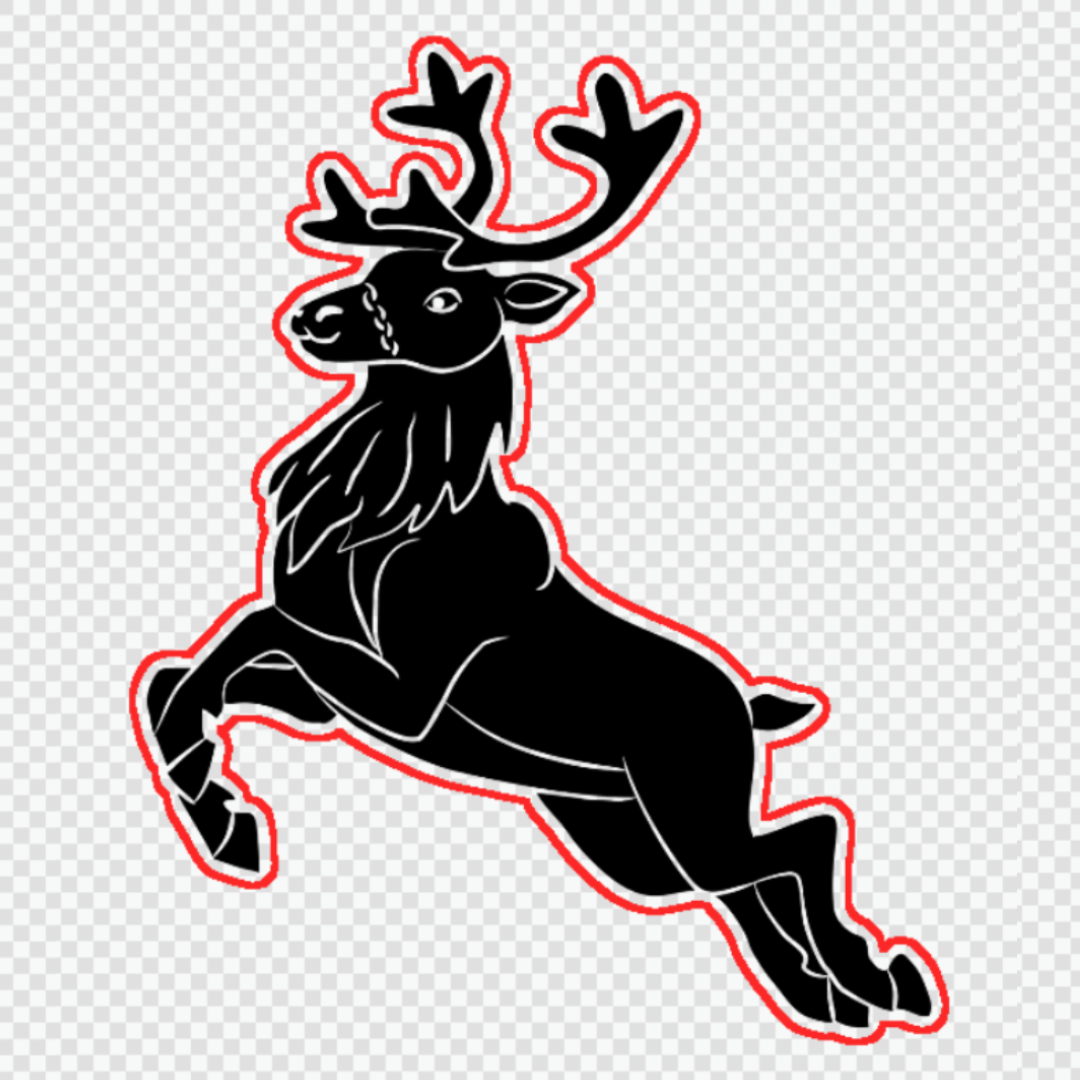
Drag to compare real customer images before and after EngraveIQ processing.


Built to remove the manual work
that slows down engraving workflows.
Instant engraving-ready results
Upload any image and automatically prepare it for laser engraving, cutting, and sandblasting workflows.
Transparent engraving-ready PNGs
Automatically remove backgrounds and export transparent PNGs that engrave only the artwork area for faster processing.
Clean, optimized engraving quality
Enhance contrast, detail, and clarity automatically for sharper engraving results on real materials.
Preview designs on your own products
Upload your own materials or products and generate realistic engraving mockups for listings and customer approvals.
Works with your engraving workflow
Export ready-to-use files compatible with LightBurn, Glowforge, xTool, and major laser systems.
Fast, browser-based processing
No software installs or complicated setup. Everything runs directly in your browser in seconds.
Built for engravers, makers, and small businesses who want faster workflows and cleaner results.
“Most of my customers send blurry phone photos or screenshots and I used to spend ages fixing them manually. The AI conversion tool cleans them up surprisingly well and the engraving comes out much sharper than before.”
“The combination of instant conversion and product previews honestly changed my workflow! I can prepare customer mockups and engraving files in minutes instead of bouncing between multiple apps.”
“The portrait to SVG tool is seriously good once you play around with the settings a bit. I've managed to get really clean vector portraits for slate and wood engravings without needing Illustrator anymore.”
“The transparent PNG export saves a ridiculous amount of processing time in LightBurn. Only engraving the artwork area instead of the whole image makes everything much faster and cleaner.”
“The shadow effect tool makes engravings stand out so much more on wood slices. It adds depth and gives the final product a much more premium look compared to flat engravings.”
“You can tell this platform was built by someone who actually engraves! Support replies fast, listens to feedback, and features are constantly improving — that alone made me stick with it. Highly recommended!”
“Most of my customers send blurry phone photos or screenshots and I used to spend ages fixing them manually. The AI conversion tool cleans them up surprisingly well and the engraving comes out much sharper than before.”
“The combination of instant conversion and product previews honestly changed my workflow! I can prepare customer mockups and engraving files in minutes instead of bouncing between multiple apps.”
“The portrait to SVG tool is seriously good once you play around with the settings a bit. I've managed to get really clean vector portraits for slate and wood engravings without needing Illustrator anymore.”
“The transparent PNG export saves a ridiculous amount of processing time in LightBurn. Only engraving the artwork area instead of the whole image makes everything much faster and cleaner.”
“The shadow effect tool makes engravings stand out so much more on wood slices. It adds depth and gives the final product a much more premium look compared to flat engravings.”
“You can tell this platform was built by someone who actually engraves! Support replies fast, listens to feedback, and features are constantly improving — that alone made me stick with it. Highly recommended!”
Simple pricing for every engraving workflow
Access the Free Dithering Tool with any plan, then use credits for AI-powered conversions, exports, and advanced workflows.
Starter
Best for hobbyists and occasional engraving projects
250 credits / month
- Unlimited access to all free engraving tools
- Engraving Studio access
- Full feature set included
- 250 AI processing credits per month
- Laser Color Studio — 1 profile, auto-match, unlimited exports
- Standard processing speed
- Standard support
Perfect for trying engraving workflows and light personal use
Pro
Best for daily engraving work and custom orders
500 credits / month
- Everything in Starter
- 500 AI processing credits per month
- Priority processing queue
- Full access to Engraving Studio and tools
- Laser Color Studio — 5 profiles, auto-match, unlimited exports
- 3 saved mockup presets
- Commercial use included
Designed for professional engravers handling regular client work
Premium
Best for engraving businesses and production workflows
750 credits / month
- Everything in Pro
- 750 AI processing credits per month
- Laser Color Studio — 20 profiles, auto-match, unlimited exports
- 10 saved mockup presets
- Bulk upload processing (batch images at once)
- Priority email support (24-hour response)
- Optimized for high-volume production work
Built for shops handling multiple orders and repeat workflows
Unlimited
Best for high-volume studios and commercial operations
Unlimited credits
- Everything in Premium
- Unlimited AI processing* (fair use applies)
- Laser Color Studio — unlimited profiles, auto-match, unlimited exports
- 25 saved mockup presets
- Bulk upload processing
- Highest priority processing queue
- Direct support line / priority founder access
Designed for professional studios and heavy daily usage
Need extra credits?
One-time top-ups. Never expire.
Common questions
What is EngraveIQ?
+
EngraveIQ is an AI-powered laser engraving image preparation tool that converts normal photos into laser-ready files in seconds. It helps creators, Etsy sellers, and engraving businesses generate cleaner engravings, improve detail quality, and reduce manual editing time by over 20 minutes per image.
How does EngraveIQ improve laser engraving quality?
+
EngraveIQ uses advanced AI image processing, smart contrast optimization, and professional dithering algorithms to prepare images specifically for laser engraving machines. This creates sharper details, smoother gradients, and more consistent engraving results on wood, slate, acrylic, metal, leather, and glass.
What makes EngraveIQ different from other laser engraving software?
+
Unlike traditional laser engraving image converters, EngraveIQ combines:
- AI image stylizing with consistency
- One-click PNG to SVG conversion
- SVG editing and masking tools
- Advanced dithering tools
- Laser-specific optimization
- Fast 10-second image processing
- Up to 7x faster engraving preparation workflow
This helps small businesses and creators produce higher-quality engravings with less effort.
What is laser engraving image preparation?
+
Laser engraving image preparation is the process of converting regular images into optimized laser-ready files with correct contrast, brightness, detail separation, and dithering patterns. Proper image preparation improves engraving quality and reduces burn inconsistencies.
What is dithering in laser engraving?
+
Dithering is a technique that simulates grayscale by using patterns of black and white dots. In laser engraving, dithering helps create smoother shading, more detail, and realistic photo engravings on materials like wood and slate.
Does EngraveIQ include a dithering tool?
+
Yes. EngraveIQ includes an advanced laser engraving dithering tool designed specifically for engraving machines. You can generate high-quality dithered images with optimized detail, smoother gradients, and better engraving results. Free users can generate up to 10 images per day, while paid plans offer unlimited usage.
In addition, you can easily adjust brightness, contrast, and gamma settings to fine-tune your engraving output. EngraveIQ also includes a built-in background removal tool, which helps improve image clarity, increase engraving quality, and significantly reduce preparation time.
Can EngraveIQ convert PNG to SVG?
+
Yes. EngraveIQ offers one-click PNG to SVG conversion, allowing you to transform raster images into clean, scalable vector files for sharper engraving lines and faster machine processing. You also get built-in controls to fine-tune the conversion, including threshold and detail adjustments, so you can achieve the exact level of precision your design needs.
In addition, EngraveIQ includes an SVG eraser tool, making it easy to remove unwanted traced areas and clean up your vectors before engraving. This results in higher-quality outputs and a smoother engraving workflow.
Why use SVG files for laser engraving?
+
SVG files are vector-based, meaning they scale without losing quality. SVG engraving files often produce cleaner cuts, smoother edges, and faster engraving performance compared to standard bitmap images.
How fast is EngraveIQ image processing?
+
Most image conversions are completed within 10 seconds. This makes EngraveIQ one of the fastest AI laser engraving image preparation tools available online.
Can EngraveIQ reduce engraving time?
+
Yes. Optimized engraving images can reduce engraving machine runtime by up to 7x while also improving engraving clarity and consistency.
Does EngraveIQ work for small businesses?
+
Absolutely. EngraveIQ is designed for:
- Etsy sellers
- Laser engraving shops
- Personalized gift businesses
- Print-on-demand creators
- Hobby engravers
- Small manufacturing businesses
It helps businesses save time and produce more professional engraving results.
What file formats does EngraveIQ support?
+
EngraveIQ supports popular image formats including:
- PNG
- JPG
- JPEG
- SVG
Additional export options may be added in future updates.
Can I use EngraveIQ with LightBurn?
+
Yes. EngraveIQ-generated files are designed to work with popular laser engraving software including LightBurn and other major laser machine workflows.
Which materials work best with EngraveIQ?
+
EngraveIQ optimizes images for:
- Wood engraving
- Slate engraving
- Acrylic engraving
- Leather engraving
- Metal engraving
- Glass engraving
How does AI image stylizing help laser engraving?
+
AI image stylizing in EngraveIQ is built specifically for laser engraving image preparation, helping transform photos into laser-ready images with optimized contrast, sharp edges, and precise detail separation. This results in cleaner burns, smoother gradients, and higher-quality engraving outputs on materials like wood, slate, acrylic, and metal.
Our AI laser engraving software automatically enhances image consistency, improves grayscale balance, and applies intelligent adjustments that would normally require manual editing in tools like Photoshop. This significantly reduces laser engraving preparation time while boosting final engraving quality.
EngraveIQ also improves photo to SVG conversion for laser engraving, making it easier to convert portraits and detailed images into clean, scalable vector files with better accuracy and fewer artifacts. To ensure the best results, users can instantly compare improvements using a before-and-after image comparison slider, allowing precise control over engraving optimization and final output quality.
Can beginners use EngraveIQ?
+
Yes. EngraveIQ is built for both beginners and advanced laser engraving users. The workflow is simple:
- Upload image
- Select settings
- Generate laser-ready file
- Download and engrave
Does EngraveIQ replace Photoshop for engraving preparation?
+
For most laser engraving workflows, yes. EngraveIQ replaces many time-consuming Photoshop steps by automating the entire laser engraving image preparation process. With EngraveIQ, you can handle everything in one place, including:
- Contrast, brightness, and gamma adjustment
- DPI and resolution optimization for engraving accuracy
- Background removal (enhanced specifically for laser engraving)
- Advanced dithering for smoother gradients and better detail
- Grayscale and engraving contrast optimization
- PNG to SVG vector conversion
- Vector editing and masking tools
- SVG cleanup for precise engraving paths
- AI image upscaling for higher-resolution engraving
- Shadow glow effects to add depth to photo or text engravings
This eliminates the need for complex manual editing and significantly reduces engraving preparation time, while improving engraving quality, consistency, and machine efficiency.
Why do laser engravings sometimes look blurry or burnt?
+
Blurry or overburned results are usually caused by poor laser engraving image preparation. Issues like low contrast, incorrect dithering, unoptimized grayscale values, and improper DPI settings can significantly reduce engraving quality and lead to inconsistent burns.
EngraveIQ solves these problems by automatically optimizing images for laser-ready output, improving contrast balance, detail separation, and engraving clarity. We also offer a laser engraving quality checker (currently in beta), which helps identify potential issues before engraving. This allows you to fix problems early, reduce material waste, and achieve more consistent, high-quality engraving results.
How can I improve photo engraving results?
+
To improve photo engraving quality:
- Use images with high-resolution and good lighting
- Apply proper dithering
- Optimize contrast
- Remove unnecessary backgrounds
- Convert images into laser-ready formats
EngraveIQ automates these steps using AI.
Is EngraveIQ cloud-based?
+
Yes. EngraveIQ works directly in the browser with no complicated installation required.
Is the free converter really free?
+
Yes. No signup and no credit card required. You can simply upload an image and instantly download your dithered result. You can also create a free account to save your files and get 30 AI credits for advanced features like AI image styling, giving you higher-quality, more optimized results for laser engraving workflows.
Which laser machines are the files compatible with?
+
EngraveIQ generates PNG, SVG and dithered PNG files that are compatible with almost all major laser engraving software and machines that support standard file formats. This includes popular platforms such as LightBurn, Glowforge, xTool Creative Space, Atomstack, and OMTech, along with most CO₂, diode, and fiber laser engravers.
Because the files are optimized for engraving workflows, they load quickly, process efficiently, and produce consistent, high-quality engraving results across different machines and setups.
Does EngraveIQ include a Portrait to SVG converter?
+
Yes. EngraveIQ includes an advanced AI Portrait to SVG converter that transforms photos into optimized, engraving-ready vector files. When users apply one of the AI styles that support SVG output, the system intelligently reshapes and stylizes the image specifically for vector conversion, ensuring cleaner paths, better structure, and higher-quality engraving results.
In addition, EngraveIQ includes a unique SVG masking and eraser tool, allowing users to remove or hide unwanted traced areas directly inside the vector file. This makes it easy to refine designs without needing external software like Illustrator.
Unlike most tools online, EngraveIQ combines photo to SVG conversion, AI styling, and SVG editing/erasing tools in one workflow, making it ideal for professional laser engraving preparation.
What is the shadow effect tool in EngraveIQ?
+
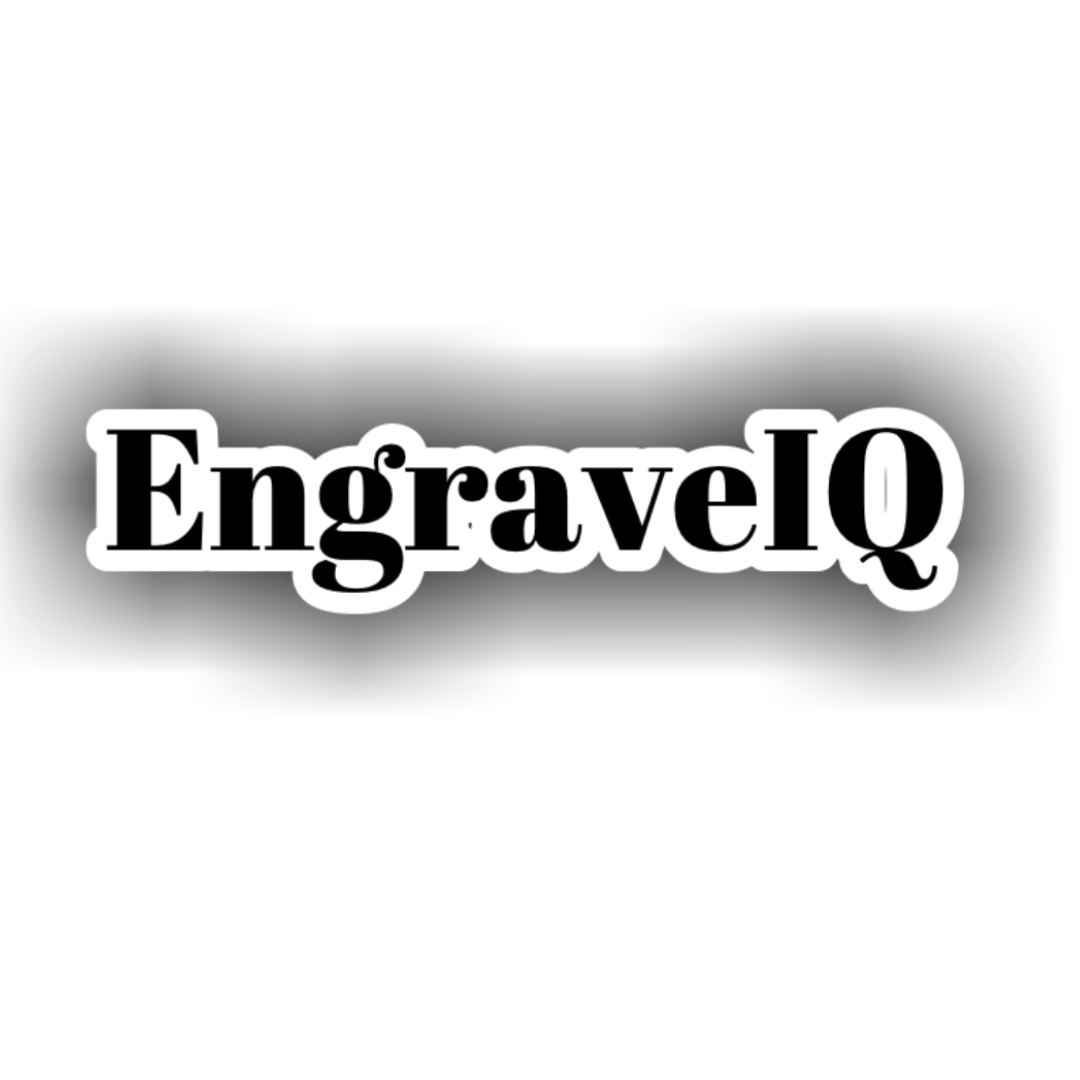
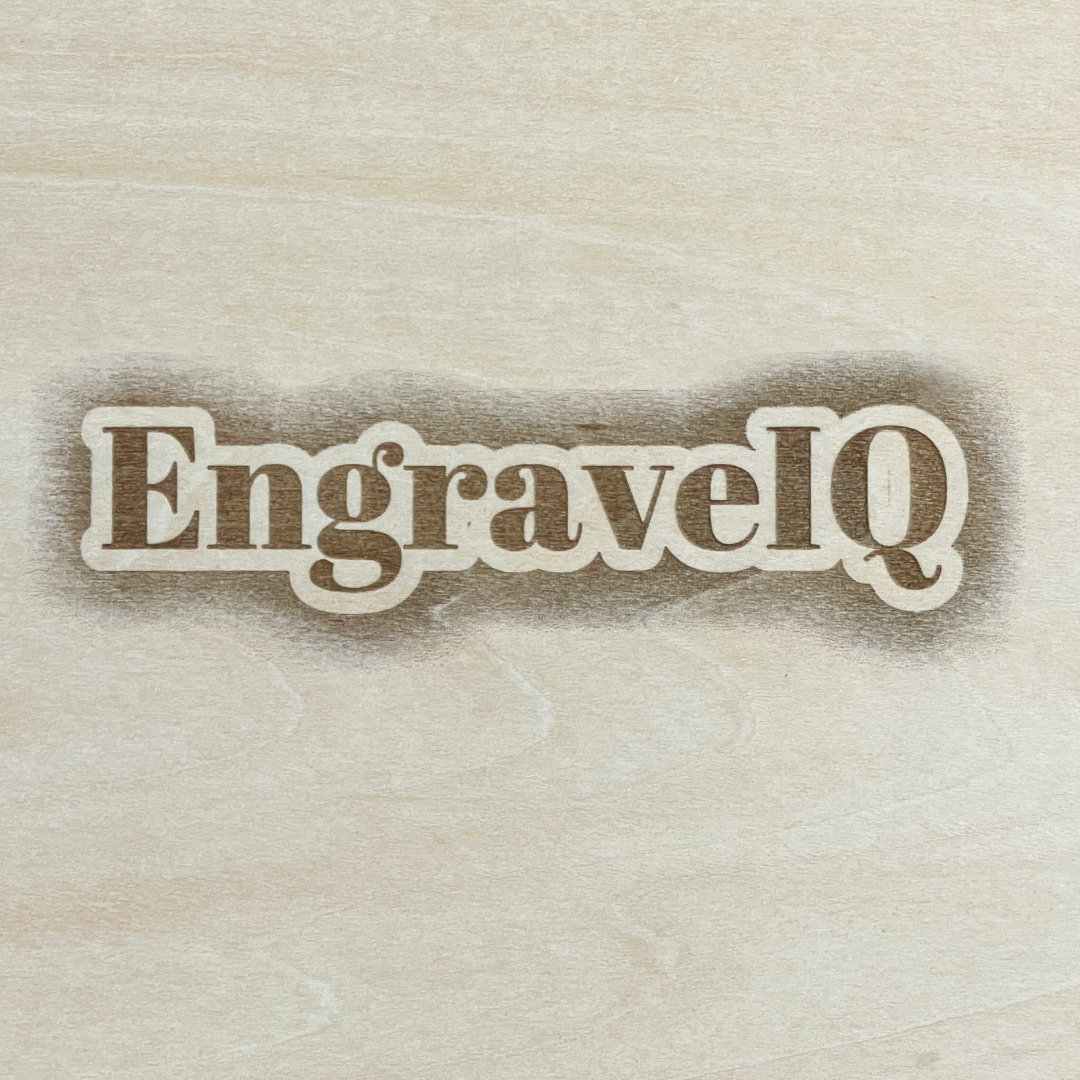
EngraveIQ includes an advanced laser engraving shadow effect tool designed to make engraved photos look more realistic, professional, and visually deep. Users can upload an image without a background and instantly apply either a drop shadow or circular shadow effect, which is especially effective for wood slice engraving designs and personalized gift products. This helps create a natural depth effect, making the engraving appear more premium, dimensional, and visually appealing when processed on laser machines.
Does EngraveIQ include a 3D text generator for laser engraving?
+
Yes. EngraveIQ includes an advanced 3D text generator for laser engraving that allows users to create professional, depth-enhanced text designs with realistic visual impact. The tool automatically adds 3D styling and drop shadow effects, making engraved text appear more dimensional, bold, and high-end when processed on laser machines.
This is especially useful for signage, nameplates, logos, and personalized engraving projects. By simulating depth and shadow before engraving, it helps produce a more premium look, improving both readability and visual quality on materials like wood, acrylic, slate, and metal.
What is the Engraving Mockup Library?
+
EngraveIQ allows you to save and reuse engraving mockups using your own products or preset materials. This helps you quickly create consistent product previews for customers, listings, and approvals without rebuilding designs each time.
Can I upload my own products for mockups?
+
Yes. You can upload your own product images and turn them into reusable engraving mockups. This lets you preview designs directly on your real items, improving accuracy and helping customers visualize the final result.
How many mockups can I save?
+
Saved mockups depend on your plan:
- Pro: 3 saved mockups
- Premium: 10 saved mockups
- Unlimited: 25 saved mockups
These are reusable templates for faster workflow and customer previews.
Can I use mockups for my Etsy or online store?
+
Yes. The mockup system is designed for sellers who want to improve product listings and increase conversion rates by showing realistic engraving previews before production.
What is Laser Color Studio for fiber laser engraving?
+
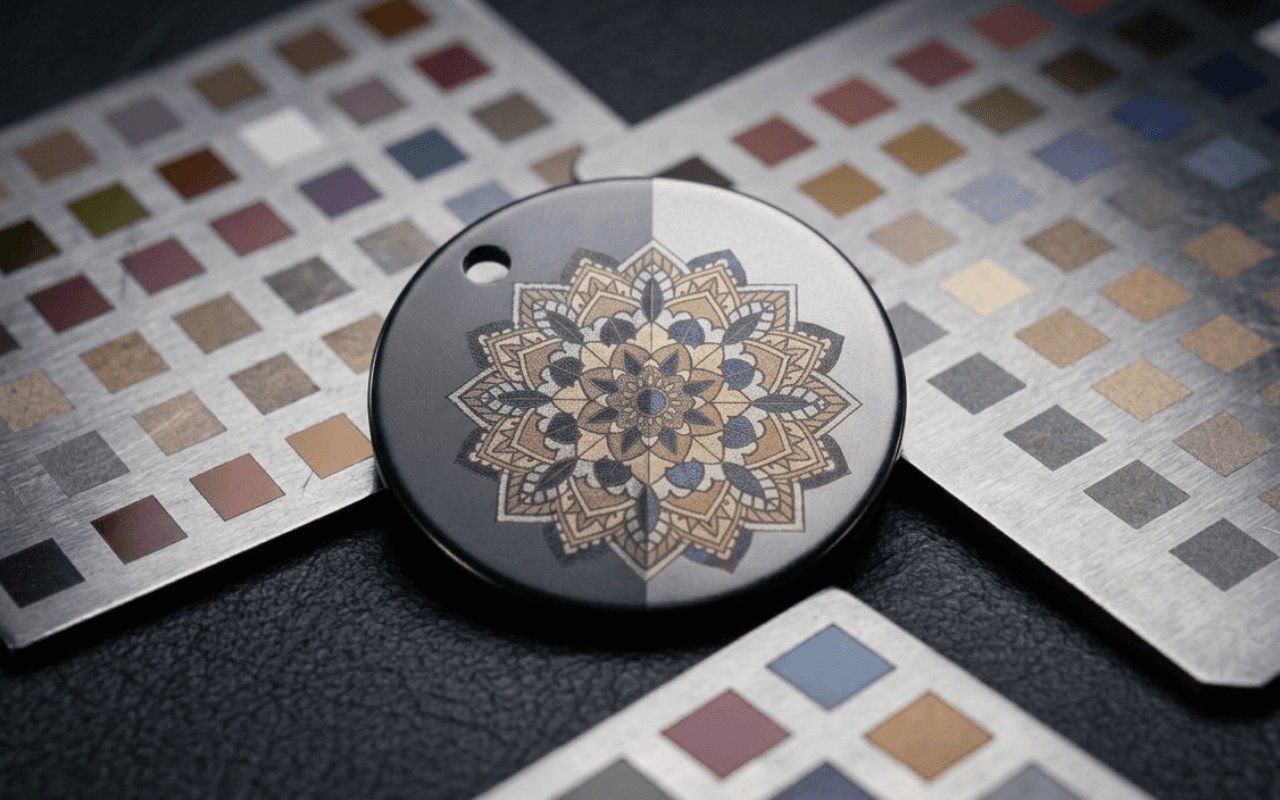
Laser Color Studio is a fiber laser color engraving tool that lets you calibrate your machine once and reuse your real color settings forever. You burn a parameter-sweep test grid for your exact machine and material, photograph it, and label the colors you got — building a personal color palette tied to your frequency, speed, and lines/cm settings. You then paint any SVG design with those calibrated colors and export ready-to-burn files, so you never have to rebuild color layers by hand again. It's built for MOPA fiber, xTool F1 Ultra, and F2 Ultra lasers.
How do I engrave in color on a fiber laser?
+
Color on a fiber laser comes from controlling oxidation with precise frequency, speed, power, and pulse settings. The hard part is reproducing a color you've already dialed in. Laser Color Studio solves this with a simple workflow:
- Calibrate your machine by burning and labeling a test grid
- Paint your SVG design using your saved color palette
- Export a ready-to-burn file with every parameter already applied
- Press engrave
What you paint on screen is what comes off the bed — no re-typing settings at the machine.
Does Laser Color Studio export LightBurn and xTool xCS files?
+
Yes. Laser Color Studio exports native LightBurn (.lbrn2) and xTool Creative Space (.xcs) files with every layer already set to the correct frequency, speed, power, and lines/cm parameters. There's no manual layer setup and no re-entering settings — you open the file, focus, and run. It includes machine-aware parameter handling for MOPA fiber, F1 Ultra, and F2 Ultra, including F2's Color Engrave mode, plus support for multi-pass and layered color recipes.
Can I save and reuse my fiber laser color settings?
+
Yes. Laser Color Studio stores every machine-and-material combination you've calibrated as a reusable profile, building a personal color library that grows more valuable the more you burn. Instead of scribbling settings in a notebook and hoping to find them again, you keep a permanent, searchable palette of your proven colors. Paid plans support from 1 profile (Starter) up to unlimited profiles, and Pro and above can import/export profiles as JSON.
What is fiber laser color calibration and why does it matter?
+
Fiber laser color calibration is the process of burning a parameter-sweep test grid — varying frequency, speed, power, and lines/cm — then recording which settings produced which colors on a specific material. It matters because fiber laser colors are highly machine- and material-dependent: the same settings that give you a deep blue on stainless steel can land somewhere completely different on brass or titanium, and someone else's machine rarely reproduces your results either. Laser Color Studio turns your own calibration into a reusable palette you paint designs with, so your colors stay consistent every time you come back to the same machine-and-material combination — and you simply calibrate once more whenever you switch materials.
Is Laser Color Studio free?
+
Yes — Laser Color Studio is currently free to use during its beta. While in beta, you get one calibration profile and 3 ready-to-burn exports per month, plus all the calibration tools (test-grid generator, photo labeling, import, and manual entry) and manual color painting, so you can fully test the calibrate → paint → export → burn workflow on your own machine at no cost. As the feature comes out of beta, higher limits — unlimited exports, auto color matching, and more profiles — will roll into the paid EngraveIQ plans. Beta access is included in your subscription with no separate Laser Color Studio fee.