
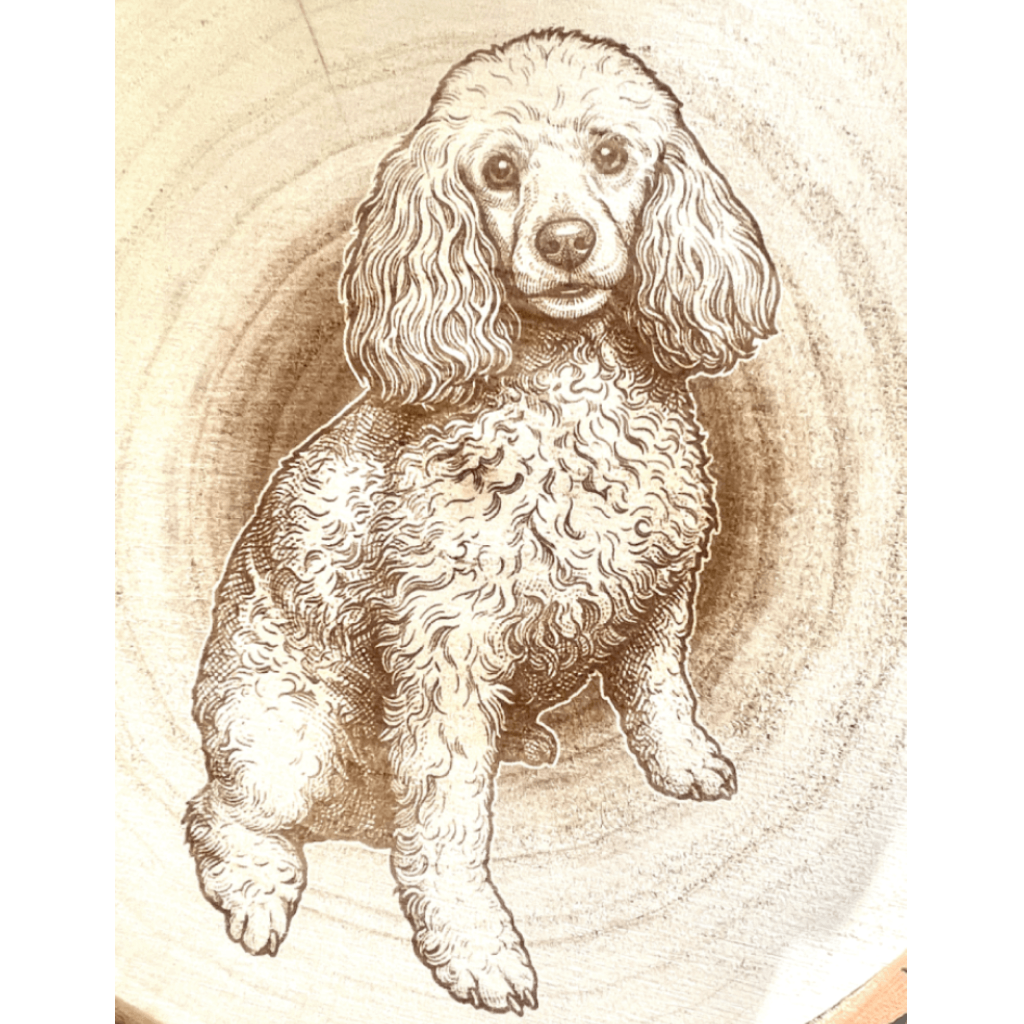
Why Laser Engravings Look Burnt (Causes + Easy Fixes)
Discover why laser engravings appear burnt and how to fix common issues like contrast, power settings, and poor image preparation.
Why Your Laser Engravings Look Burnt (and How to Fix It)
One of the most frustrating problems in laser engraving is when your design comes out looking burnt, dark, or over-processed.
Even with the right machine settings, poor image preparation can completely ruin your final result.
🔥 What “burnt engraving” actually means
A burnt engraving happens when too much laser energy is applied to areas that should remain light or detailed. This leads to:
- Over-darkened areas
- Loss of fine detail
- Blended or muddy textures
- Flat-looking results
⚠️ The real causes of burnt engravings
Most people assume it’s just machine settings — but in reality, it usually starts much earlier in the workflow.
- Low contrast images with unclear details
- Poor or missing dithering
- Overexposed or dark source photos
- Incorrect brightness and gamma balance
- Unremoved or noisy backgrounds
When the input image is not optimized, the laser has no way to interpret detail correctly.
🧠 Why adjusting machine settings alone doesn’t fix it
Many users try to fix burnt engravings by lowering power or adjusting speed. While this helps slightly, it does not solve the root problem.
If your image is poorly prepared, even perfect machine settings will still produce inconsistent results.
⚡ The missing step: proper image preparation
Clean engraving results depend on how well your image is prepared before it reaches the laser.
The most important improvements are:
- Controlled contrast enhancement
- Smart dithering for grayscale simulation
- Background removal for clean burn areas
- Balanced brightness and shadow control
🚀 The easiest way to fix burnt engravings
Instead of manually adjusting every image, tools like EngraveIQ automatically prepare images specifically for laser engraving workflows.
The AI converter ensures:
- Proper contrast distribution for engraving clarity
- Reduced overburn risk through optimized dithering
- Cleaner subject separation
- Consistent engraving output across materials
- Fast processing in seconds
This eliminates the guesswork and helps prevent burnt or over-engraved results before they happen.
🧩 Final thoughts
Burnt engravings are almost always a preprocessing issue, not a machine failure. Once your image is optimized correctly, engraving results become far more consistent and predictable.
✨ Try it yourself
Upload your image and let EngraveIQ automatically optimize it for clean, balanced engraving results.
Fix engraving results →