
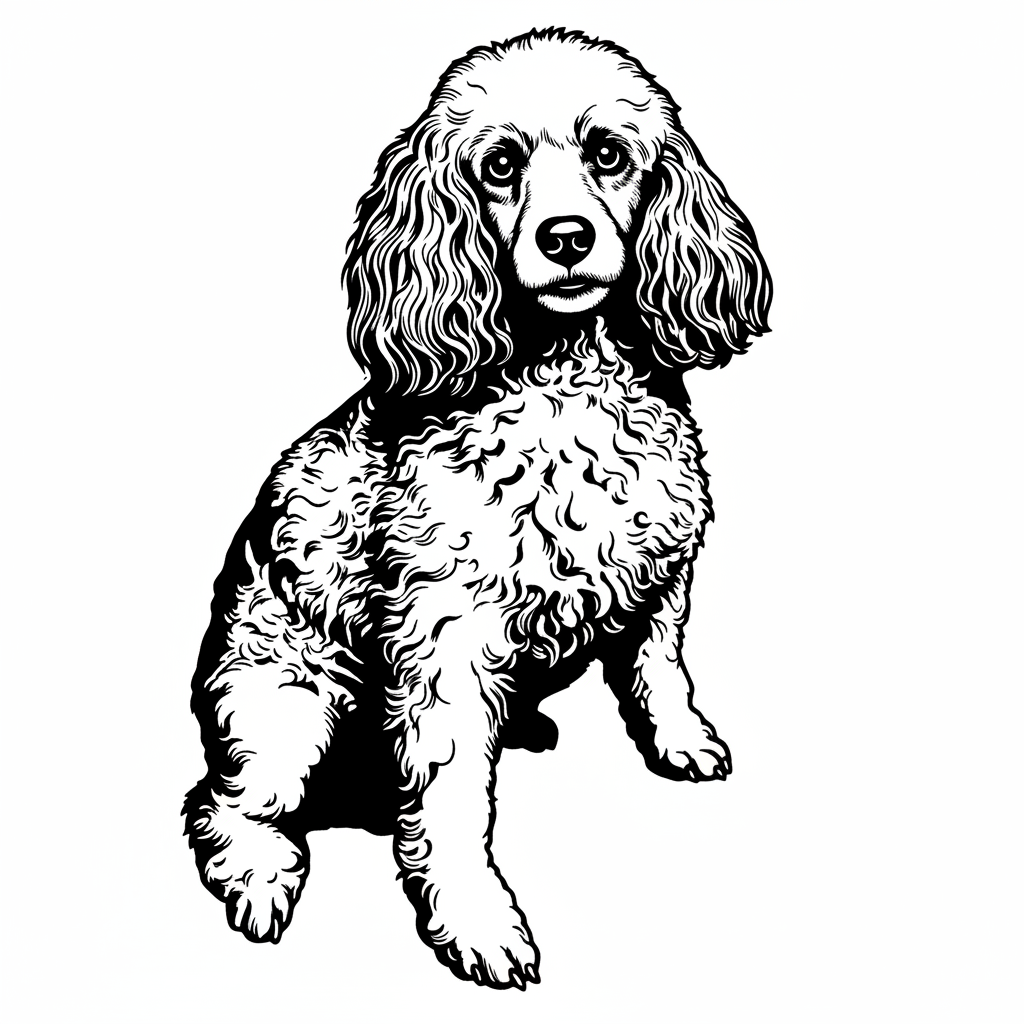
PNG vs SVG for laser engraving (and why your conversions look bad)
Understand PNG vs SVG for laser engraving, why vectorizing photos often fails, and how AI preprocessing improves portrait-to-SVG results dramatically.
PNG vs SVG for Laser Engraving (and Why Your Conversions Often Fail)
When preparing images for laser engraving, one of the most common questions is whether to use PNG or SVG files.
The truth is: both formats are useful — but only when used correctly. Poor conversion, especially from photos to SVG, often leads to messy, unusable engraving files.
🖼️ PNG for laser engraving
PNG files are raster-based images. They are widely used for engraving because they preserve shading and detail.
- Great for portraits and photos
- Supports dithering and grayscale engraving
- Works directly in most laser software
However, PNG files can lose quality when scaled and may require proper preprocessing for optimal engraving results.
📐 SVG for laser engraving
SVG files are vector-based, meaning they are made of paths instead of pixels.
- Perfect for logos and clean shapes
- Scales without losing quality
- Produces clean cut lines for lasers
But SVG conversion becomes problematic when dealing with complex images like portraits or detailed photos.
⚠️ Why photo to SVG conversion usually fails
Most tools try to directly trace a photo into vector paths. This often leads to:
- Over-tracing unwanted background areas
- Messy or overly complex vector paths
- Loss of important facial detail
- Unusable engraving output
This is especially common with portrait images, where subtle shading is critical for good engraving results.
🧠 The correct workflow for portrait to SVG conversion
The best results come from a two-step process:
- 1. Preprocess image for engraving quality
- 2. Then convert to SVG with controlled settings
This ensures cleaner vector paths and far more accurate engraving output.
🚀 The easiest way to do this (AI-powered workflow)
Instead of manually adjusting settings, tools like EngraveIQ use AI to prepare images specifically for laser engraving before vector conversion.
This improves portrait-to-SVG results dramatically by:
- Optimizing contrast before tracing
- Using portrait-specific presets
- Applying intelligent threshold control
- Reducing unwanted background tracing
You can also enable SVG export directly from the AI converter to ensure the image is already optimized before vectorization.
🧩 Advanced control: Razor masking tool
One of the biggest issues in SVG conversion is unwanted tracing of background elements.
EngraveIQ includes a built-in razor masking tool that allows you to:
- Remove unwanted traced areas
- Refine vector paths directly in browser
- Clean portrait edges without external software
Once edited, you can instantly download a tuned SVG ready for engraving — no Illustrator or extra tools needed.
🧩 Final thoughts
SVG is powerful — but only when the input image is properly prepared. For portraits especially, AI preprocessing makes the difference between unusable vectors and professional engraving results.
✨ Try it yourself
Upload a portrait or image and try EngraveIQ’s AI converter with SVG export enabled.
Convert image free →