
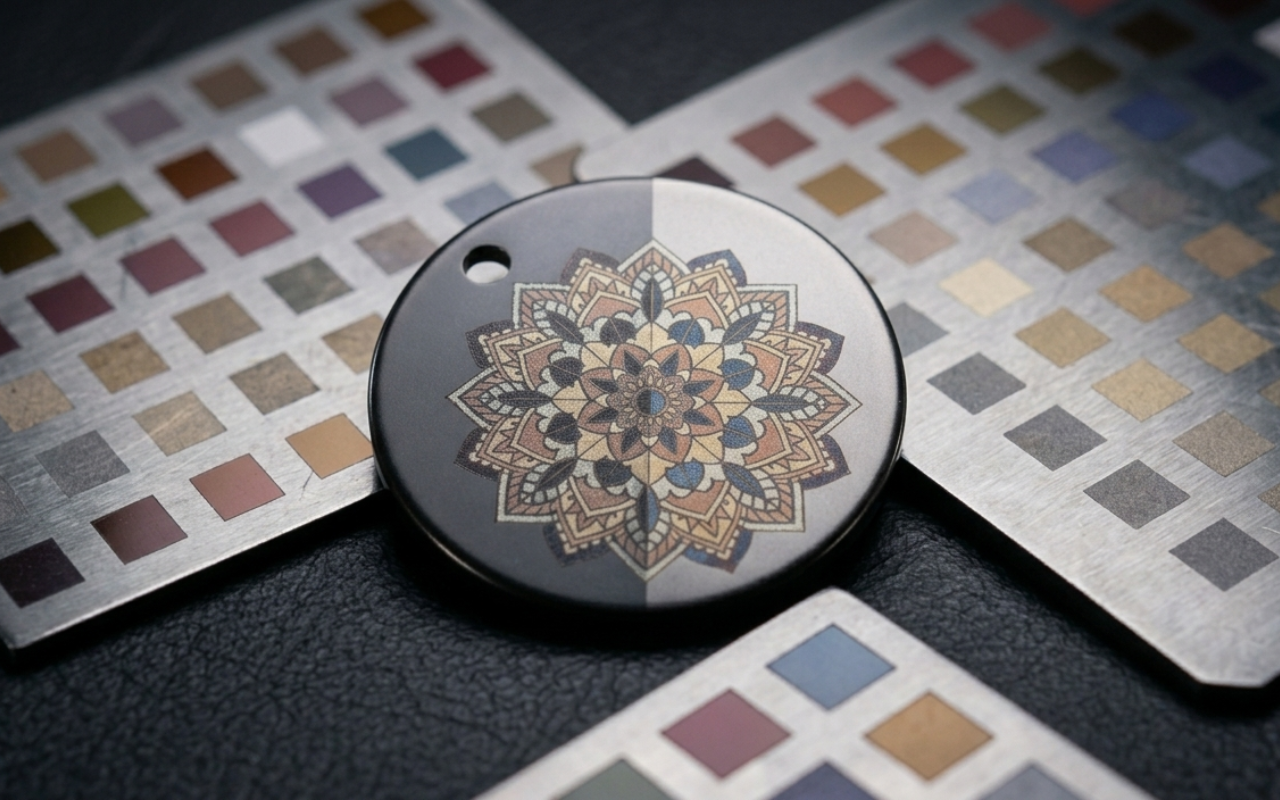
Laser Color Studio: Engrave Your Fiber Laser in Real Color
How to turn your fiber laser's tested frequency, speed, and lines/cm settings into a reusable color palette, paint any SVG with it, and export ready-to-burn LightBurn (.lbrn2) and xTool xCS (.xcs) files. Built for MOPA, F1 Ultra and F2 Ultra.
If you run a MOPA fiber laser, an xTool F1 Ultra, or an F2 Ultra, you already know the magic of color marking on stainless steel and titanium — and the pain of reproducing it. This guide explains what Laser Color Studio does, how it works, and why it changes the way you do fiber laser color engraving.
The problem: color on fiber is reproducible — until you try to reproduce it
You burn a test grid, dial in the perfect blue at 50 kHz, 60% power, 900 mm/s, 200 ns — then scribble it in a notebook and hope you can find it again. Applying those settings to new artwork means rebuilding layers by hand in LightBurn every single time. Change the material, lose the file, or come back in a month, and you’re calibrating from scratch.
Laser Color Studio fixes that. You calibrate once, design with colors instead of numbers, and export a file that’s ready to burn.
How it works: calibrate → paint → export → burn
1. Calibrate your machine once
Generate a parameter-sweep grid for your exact machine and material, burn it, then photograph it and label the colors you got. The studio learns your machine’s real palette — not someone else’s screenshot.
2. Paint your designs in real color
Upload an SVG and click regions to fill them with colors from your saved palette. You design with colors, not frequency / speed / lines-per-cm numbers — the parameters ride along underneath every region.
3. Export ready-to-burn files
Export a LightBurn (.lbrn2) or xTool Creative Space (.xcs) file with every layer already set to the right parameters. No manual layer setup, no re-typing settings at the machine.
4. Press engrave
Open the file, focus, and run. What you painted on screen is what comes off the bed — the same colors you calibrated, on the artwork you designed.
Why it’s different — built for how fiber color actually works
- Your calibration is yours. Profiles store every machine + material combination you’ve dialed in, building a personal color library that only gets more valuable the more you burn.
- Works with the software you already use. Native LightBurn (.lbrn2) and xTool Studio (.xcs) export, with machine-aware parameter handling for MOPA fiber, F1 Ultra, and F2 Ultra — including F2’s Color Engrave mode.
- Multi-pass and color techniques supported. Recipes can stack multiple parameter sets per color, so layered and multi-pass color work exports correctly the first time.
At a glance
- Supported machines: MOPA fiber · xTool F1 Ultra · xTool F2 Ultra (incl. Color Engrave mode)
- Input: any SVG design
- Calibration tools: grid generator, photo labeling, JSON import, manual entry
- Export formats: LightBurn
.lbrn2· xTool Creative Space.xcs - Free tier: 3 exports / month · 1 calibration profile · no credit card
Frequently asked questions
Which fiber lasers does Laser Color Studio support?
It’s built for MOPA fiber lasers and the xTool F1 Ultra and F2 Ultra — including the F2’s Color Engrave mode — with machine-aware parameter handling.
What file formats can I export?
Native LightBurn (.lbrn2) and xTool Creative Space (.xcs) files, with every layer already configured to the correct frequency, speed, and lines/cm settings.
Do I need to re-calibrate every time?
No. Each calibration profile stores a machine-plus-material combination, so you build a reusable personal color library and apply it to any design.
Does it support multi-pass color techniques?
Yes. Recipes can stack multiple parameter sets per color, so layered and multi-pass color work exports correctly the first time.
Calibrate once, paint your designs with your machine’s real color palette, and export ready-to-burn files. Try Laser Color Studio free — no credit card needed.